
What is 2FA?
2FA is a process where two factors, usually a password and an email/phone code, need to be entered in order to log in. This is to prevent bots, block spam accounts under one phone, and ensure tenant security.
Existing tenants:
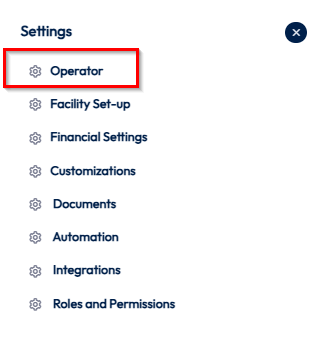
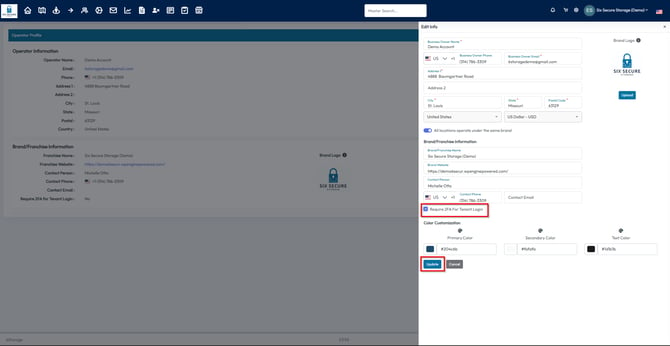
To enable 2FA for existing tenants, open your Operator Settings and find Edit Info. "Require 2FA For Tenant Login" should be visible just below the contact phone. Enable it if you would like tenants to log in with 2FA for security measures.
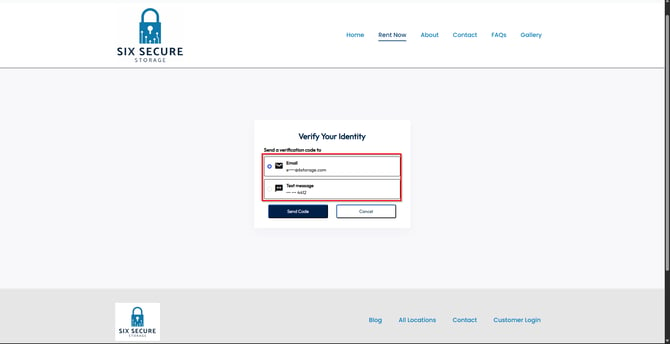
If a user attempts to create an account with a pre-existing email, it will force the user to the log in screen. Logging into your account with this setting turned on will:
- Prompt the user for a code via email or text
- Send a code with a 5 minute expiration timer to your selected choice
- Enter the code into the prompt, and verify your login
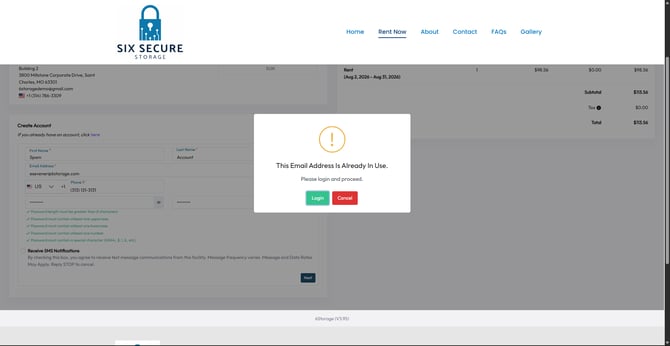
After verifying their account, you will be returned to the rental screen with your information filled out. You can now rent a unit under your account, without creating a duplicate account.
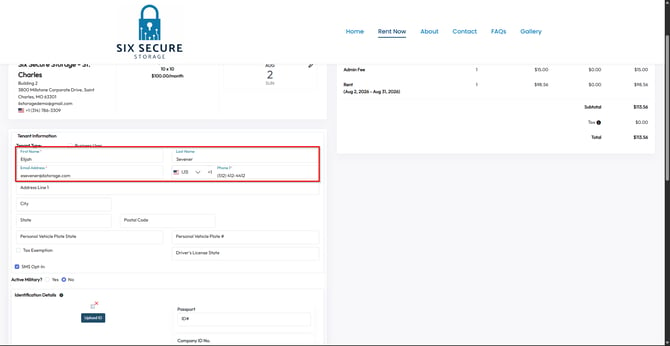
New Move-Ins:
The purpose of requiring 2FA for new move-ins is to ensure the tenant has access to their phone number while creating an account.
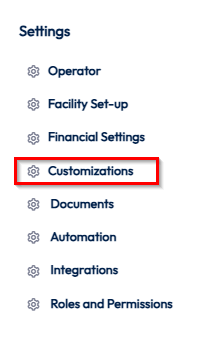
This setting can be enabled in the Customization Settings under the Rental Hub tab. Require 2FA for New Tenant Move-Ins is the setting you will need to enable.
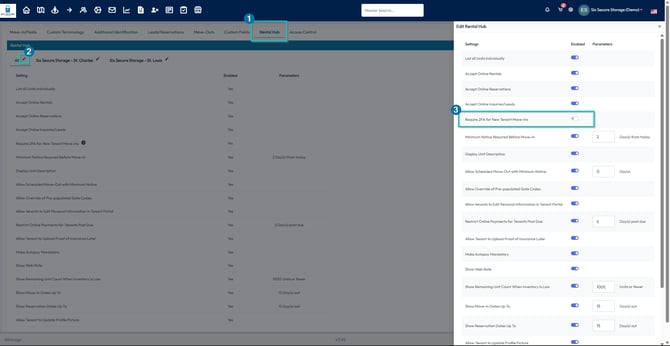
Upon creating an account with a unique phone number, the user will be prompted to enter a code that was sent to the provided phone number. That code will expire 5 minutes after it is sent.
The software will block tenants from using the same phone number for multiple accounts.
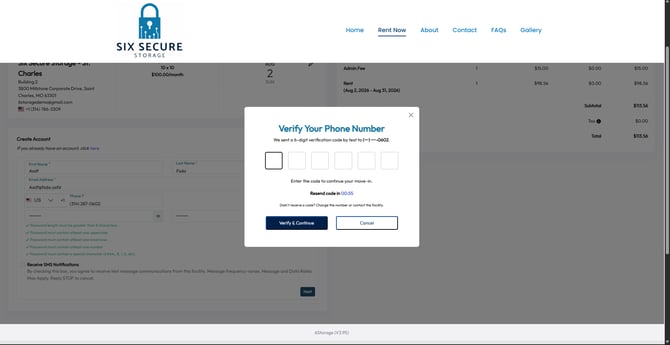
After entering the code, the tenant will be brought back to the rental screen with a verified phone number. They can now complete the rental process.