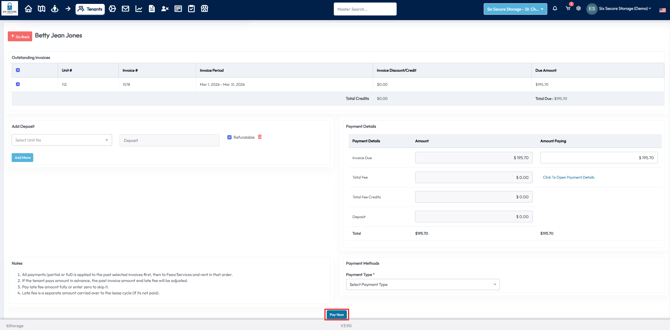
Partial payments cannot be paid by tenants online through the Rental Hub. This option is only available for the facility Operators through the Admin Portal.
Step 1: Locate the Tenant Profile
Start by navigating to the tenant’s profile:
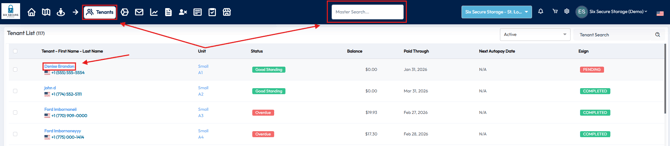
- Use the search bar at the top for a quick search
- Or, go to the Tenants tab in the toolbar at the top and find the tenant in the list
Step 2: Select the “Pay Now” Option
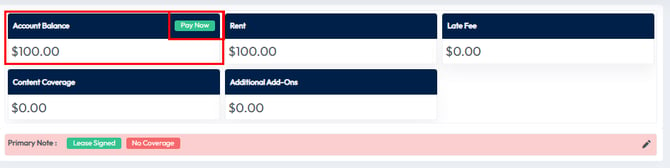
At the top of the tenant’s profile, you will see:
- The tenant’s account balance
- A Pay Now button—click this to begin the payment process
Step 3: Choose Invoices to Apply the Payment To
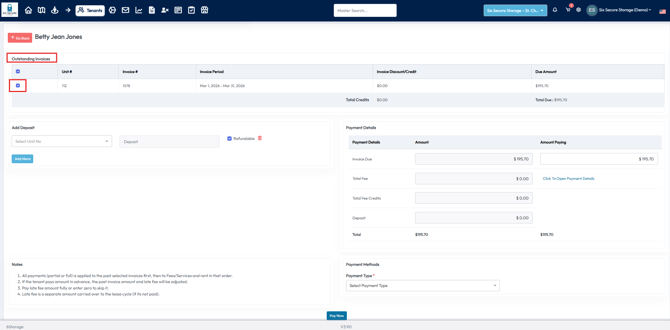
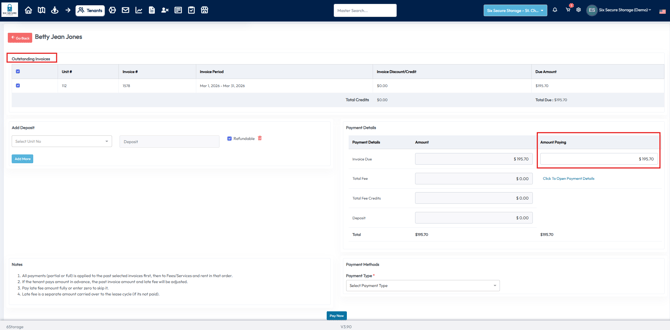
After clicking Pay Now, a list of the tenant’s outstanding invoices will appear:
- All invoices are selected by default
- You can uncheck invoices to apply the partial payment to specific charges only
- If a tenant has multiple units you will need to select invoices from one unit at a time
- You cannot make one partial payment that applies to multiple units
Step 4: Changing the Payment Amount
On the right side of the screen, you'll see:
- Amount Paying — This shows the total amount that will be recorded for this transaction
Make sure this amount reflects what the tenant is paying in this transaction.
Step 5: Viewing how the Payment is Applied
On the right side of the screen, you'll see:
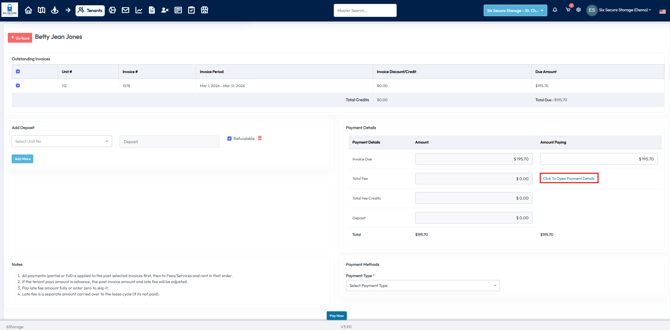
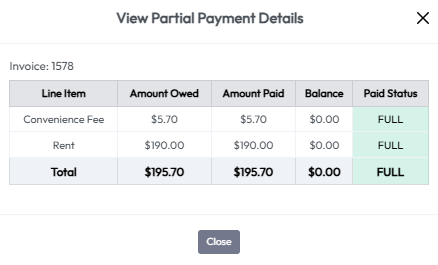
- Click To Open Payment Details — This shows the details of how the partial payment will be applied to each line item
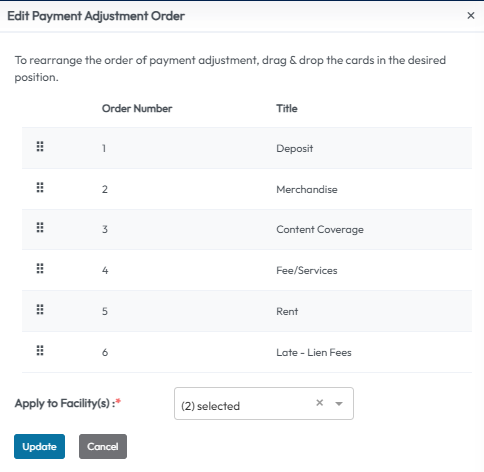
Adjusting the Partial Payment Order
In settings > Financial settings > Payment > Payment adjustment you can choose the order these partial payments are applied.
- Click the Pencil Icon to Edit
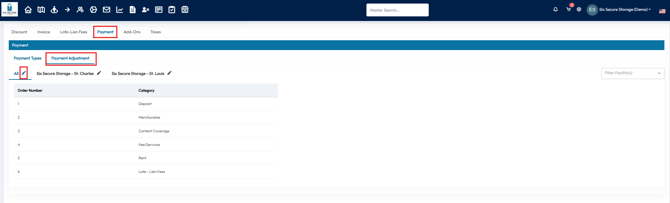
- Here you can click and drag the item categories into any order you would like using the boxes on the left
- When a partial payment is made the funds will apply to the items on this list in order until the remainder is left as a balance still owed.
Step 6: Select the Payment Type
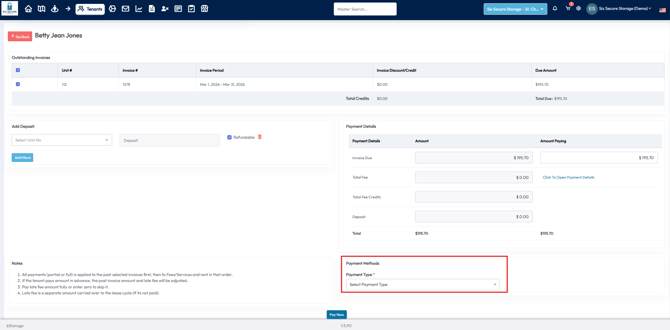
At the bottom of the screen, use the Payment Type dropdown to choose how the tenant is paying:
- Credit Card or ACH – You’ll be prompted to enter the tenant’s payment details
- Cash, Check, or other manual methods – You’ll simply select the payment date and reference number if needed
Final Step: Complete the Payment
Click Pay Now to finalize the transaction: