- The Rental Hub is attached to your website to allow potential renters to either inquire, reserve, or fully rent a space.
- Here you can adjust the settings for your Rental hub to match your facility’s operations
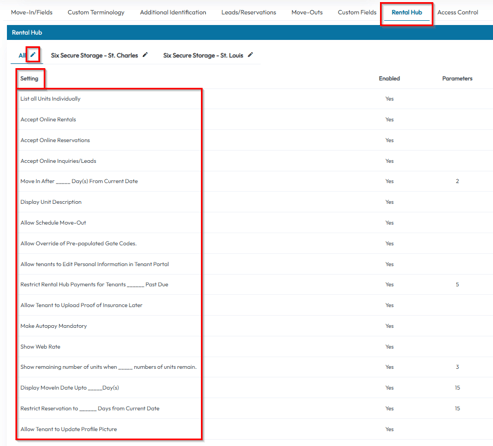
- The settings you can adjust are
- List all Units Individually
- With this setting marked as No, it will group your units together by size. For Yes, tenant will be given the option to choose a specific unit number.
- Size, type, amenities, image, discount, and services all have to be the same in order to group.
- Accept Online Rentals
- With this setting marked as Yes, the "Rent Now" button will show in the Rental Hub.
- Accept Online Reservations
- With this setting marked as Yes, the "Reserve" button will appear in the Rental Hub.
- Accept Online Inquiries/Leads
- With this setting marked as Yes, you will accept general lead information for people who show interest.
- Restrict Move-In to ____ Days from Current Day
- Limit how far in the future tenants can schedule a move in
- Ex: if you don't want tenants to move-in until three days from today, set the setting to three.
- Display Unit Description
- With this setting marked as Yes, descriptions of units will be displayed online.
- Allow Schedule Move-Out
- Allow tenants to schedule a move out day with you via a button located within the tenant portal.
- Allow Override of Pre-populated Gate Codes.
- Allow tenants to choose their own gate code even if a code has been assigned to a unit
- Allow tenants to Edit Personal Information in Tenant Portal
- With this setting as Yes, tenants will be able to update personal information within their tenant portal.
- Restrict Rental Hub Access for Tenants ______ Past Due
- Prevents past due tenants from logging in online to deal with bigger payments personally.
- Allow Tenant to Upload Proof of Insurance Later
- With this setting as yes, the tenant has the option to upload proof of insurance later while moving in.
- Make Autopay Mandatory
- If you would like to make autopay mandatory, set this setting to Yes.
- Show Web Rate
- If you have setup Web Rates within the unit screen and would like to display them online, select Yes.
- Show remaining number of units when _____ numbers of units remain.
- If you would like the rental hub to display a message stating x number of units remain select Yes.
- Display MoveIn Date Upto _____ Day(s)
- With the setting as No, the move-in date for tenants will be any day possible. With the setting as Yes, the move-in dates will only be the current day up to x day(s) away.
- Restrict Reservation to _____ Days from Current Date
- If this is turned on, it will limit how far customers can reserve a unit based off of x days from current date.
- Allow Tenant to Update Profile Picture
- With this turned on, the tenant can update their profile picture within the tenant portal.
- List all Units Individually
- There are additional settings relevant to the rental hub located under:
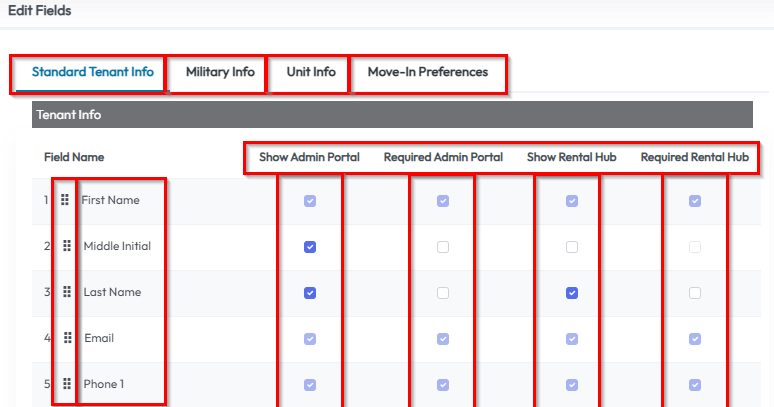
Settings > Customizations > Move-In fields. You can customize what you want to show and/or make mandatory for an online rental under each section.
(sections include Standard Tenant Info, Military Info, Unit Info, and Move-In preferences.)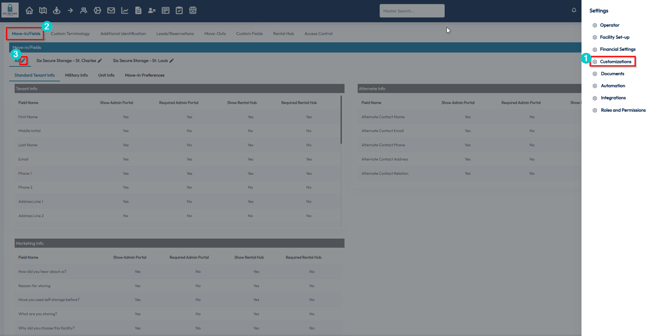
- The Invoice tab lets you to choose if you want to allow or restrict tenants from choosing different invoice periods like annually or semi annually and recurring billing options, i.e. anniversary or first of the month.