
- Most tenant correspondence in 6storage is done through templates.
- Templates can be found in Settings > Documents > Email Templates
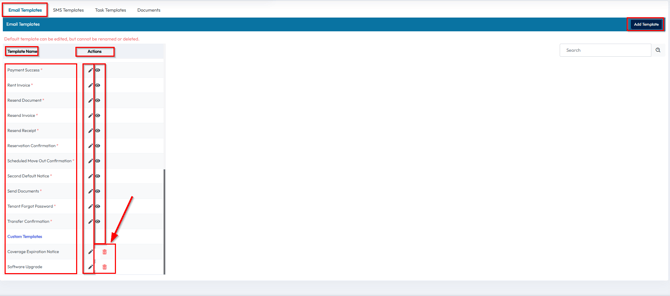
- When looking at the list of email templates you will have several options:
- Pencil
- Edit the template
- Eye
- Preview the template
- Trash Can
- Delete the template
- Add Template
- Creates a new template
- Template name
- Selecting the template name gives you the option to rename the template and change the subject line of the email.
- Pencil
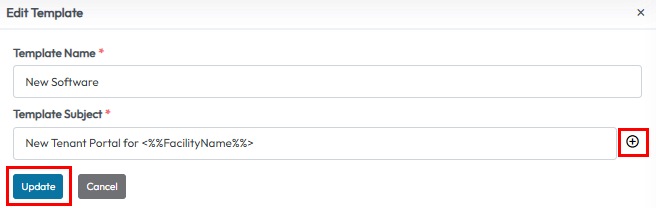
- Clicking "Add Template" will allow you to create a custom template from scratch.
- You'll add/create the template's name and subject line first.
- Note the plus sign next to the subject line allows you to insert macros for more personalized emails.
- After Creating the template, you'll need to edit the contents. You'll find the name of the template you just created in the list and then choose the pencil icon to start editing your template.
- You'll add/create the template's name and subject line first.
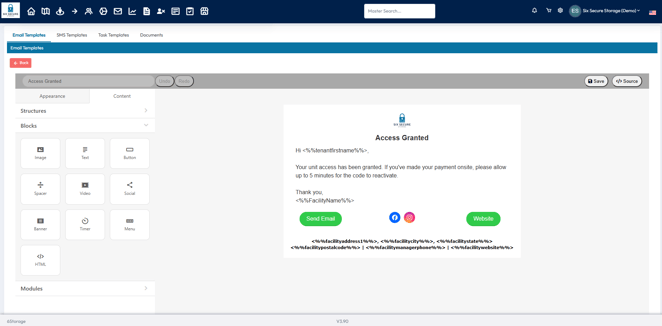
- Editing the Documents will open the template editor. Here you will have several drop-down menu options on the left side.
- Structures
- These are building blocks that you can drag and drop into the template to determine the size and format of the content of your template.
- Blocks
- These can be added to the structures by dragging them from the left side into the template.
- The options you can add are:
- Images
- Text
- Buttons
- Spacers
- Video
- Social media links
- Banners
- Timers
- Menu
- HTML
- Modules
- These are preconfigured structures and blocks for easy addition to multiple templates.
- Structures
-
You can also use the Appearance tab to customize the template further.
- General Settings - allows you to change things such as the the size, color, font, and spacing of the template
- Stripes - allows you to change the text size and color for the header, footer and main body of the message
- Button - allows you to change the size, color, and style of any buttons you may have in your template
- Mobile Formatting - Allows a few additional size options for the format of your template when viewed on a mobile device
-
When editing the document simply click in the body of the template to type
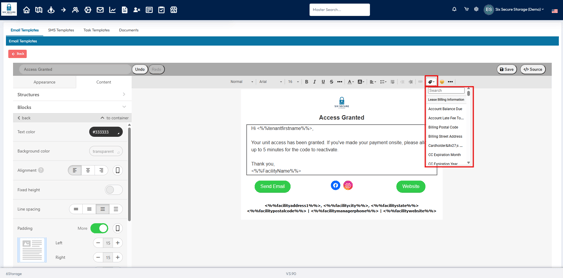
- You will have several tools available at the top including fonts, text sizes and formatting
- You will also have the option for Tags
- Tags or Macros are variable information that will be customized for each tenant
- Selecting the Tenant First Name tag will add <%%tenantfirstname%%> to the template
- Sending a template with this macro will send a personalized email to the recipient with their name in its place
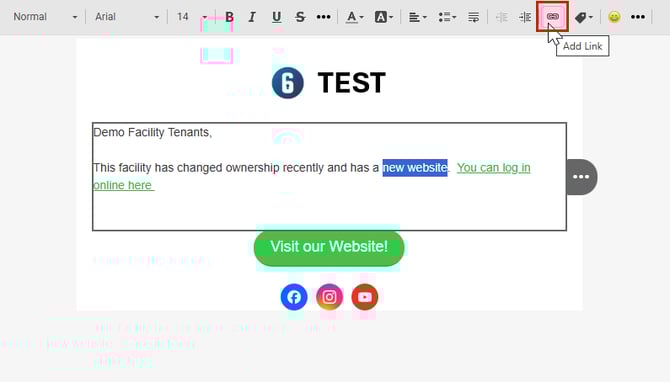
- To add a link in your document simply highlight the text you would like to turn into a link and select the Add Link option
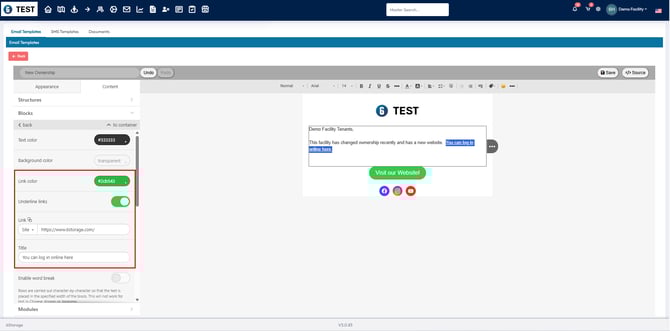
- This will open the options on the left to insert the link and change the Link color as well
- Be sure to use the Save option in the top right to save your changes