
Before you begin: Confirm that the QuickBooks products/services needed for each 6Storage line item already exists in QuickBooks. Each 6Storage line item should map to its own QuickBooks product/service. Taxes are tracked as a separate product through the 6Storage integration, so mapped products/services should generally be set as nontaxable in QuickBooks to avoid counting tax twice.
1. Open the QuickBooks integration in 6StorageIn 6Storage, go to Settings > Integrations. Locate the QuickBooks integration under the Financial section.
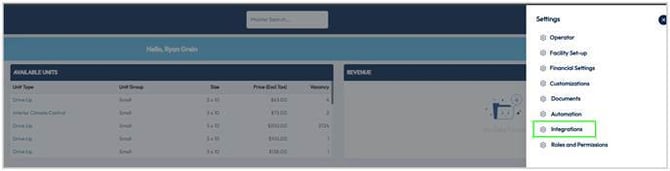
Settings > Integrations in 6Storage
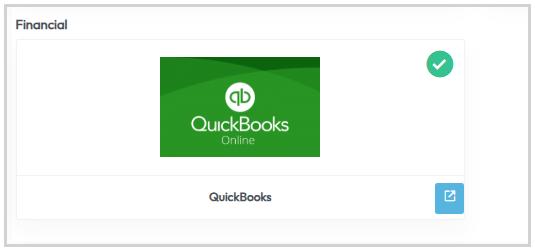
QuickBooks integration tile
2. Connect 6Storage to QuickBooksOpen the QuickBooks integration and select Connect to QuickBooks.

Connect to QuickBooks button
3. Sign in and select the QuickBooks companyQuickBooks will prompt you to sign in. After signing in, select the QuickBooks company you want to connect to 6Storage.
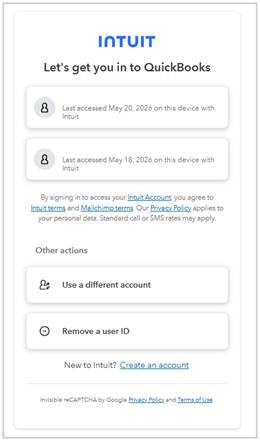
QuickBooks sign-in screen
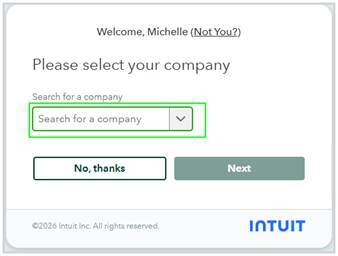
QuickBooks company selection screen
4. Create a product/service in QuickBooksBefore mapping 6Storage line items, create or review the matching products/services in QuickBooks. This ensures the 6Storage mapping screen can pull in the correct QuickBooks items.
- In QuickBooks, go to Sales & Get Paid > Products & services.
- Select New product/service.
- Choose Service as the item type for standard 6Storage line items, unless your accountant or accounting setup requires a different item type.
- Enter the product/service name. Use a clear name that matches the 6Storage line item as closely as possible.
- Select the appropriate Income account.
- Set the Sales tax category to Nontaxable for products/services that will be mapped to 6Storage line items.
|
Important tax note: Taxes are tracked as a separate product through the 6Storage integration. If the QuickBooks product/service is also set as taxable, taxes may be counted twice for that product/service. Only mark a product/service taxable if your accounting team has explicitly instructed you to do so. |
Use the Products & services page to review existing items or create a new one.
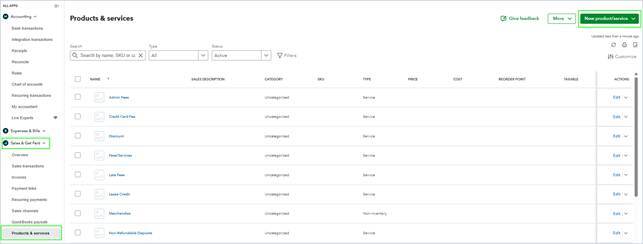
QuickBooks Products & services page
When creating the product/service, complete the required fields and confirm the tax setting before saving.
New QuickBooks service setup screen
|
Recommended setup: For most 6Storage line item products/services, use Item type = Service and Sales tax category = Nontaxable. Confirm the correct income account with your accountant or internal accounting process. |
After the company is selected, 6Storage will display the line item mapping screen. For each 6Storage line item, choose the QuickBooks product type first. The Product/Services dropdown will then populate from the connected QuickBooks account.
- Set up all needed QuickBooks products/services before mapping.
- Use a separate QuickBooks product/service for each 6Storage line item.
- Do not map two different 6Storage line items to the same QuickBooks product/service.
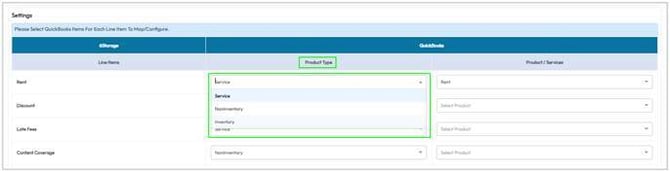
Select the QuickBooks product type
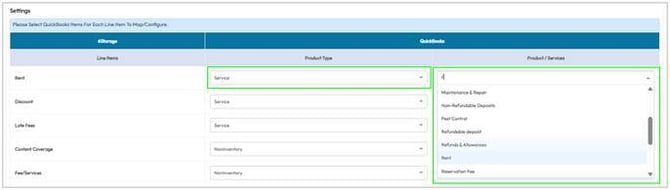
Select the matching QuickBooks product/service
6. QuickBooks account type guidance for product/service setup
When creating the QuickBooks account behind each Product/Service, use this guidance to understand the account type each 6Storage line item usually falls under. The final account names may vary by facility and should be confirmed with the operator's accountant or bookkeeper.
|
6Storage Line Item |
Usual QuickBooks Account Type |
Common Account Name |
Notes |
|
Rent |
Income |
Rental Income / Storage Income |
Standard rental revenue. |
|
Discount |
Income |
Discounts Given / Sales Discounts |
Usually set up as a contra-income account so discounts reduce income instead of being treated as an expense. |
|
Late Fees |
Income |
Late Fee Income |
Tracks late fee revenue separately from rent. |
|
Content Coverage |
Income |
Tenant Protection Income / Protection Plan Income |
Use for tenant protection or coverage revenue. |
|
Fees/Services |
Income |
Other Service Income |
General tenant fees and service charges. |
|
Merchandise |
Income |
Merchandise Sales |
Use for locks, boxes, supplies, or other items sold. |
|
Refundable Deposits |
Other Current Liabilities |
Refundable Deposits / Security Deposits Payable |
Usually a liability because the money may need to be returned to the tenant. |
|
Non-Refundable Deposits |
Income |
Non-Refundable Deposit Income |
Usually income because it is not expected to be returned. |
|
Lease Credit |
Other Current Liabilities |
Lease Credits Payable |
Usually a liability or credit-holding account. Confirm with accountant. |
|
Tenant Credit |
Other Current Liabilities |
Tenant Credits Payable |
Usually a liability because it represents value available to the tenant. |
|
Reservation Fee |
Income |
Reservation Fee Income |
Use for reservation-related fees. |
|
Tax |
Other Current Liabilities |
Sales Tax Payable |
Taxes are tracked as a separate product through the 6Storage integration. Other products/services should usually be nontaxable to avoid double-counting tax. |
|
Default |
Income |
Uncategorized Income / Other Income |
Fallback item only. Operators should review this regularly and avoid relying on it long term. |
Important: In 6Storage, the operator maps each 6Storage line item to a QuickBooks Product/Service. The QuickBooks account type is selected inside QuickBooks when creating or editing that Product/Service.
7. Review a completed line item mapping
A completed mapping should show a selected product type and a selected QuickBooks product/service for each 6Storage line item.
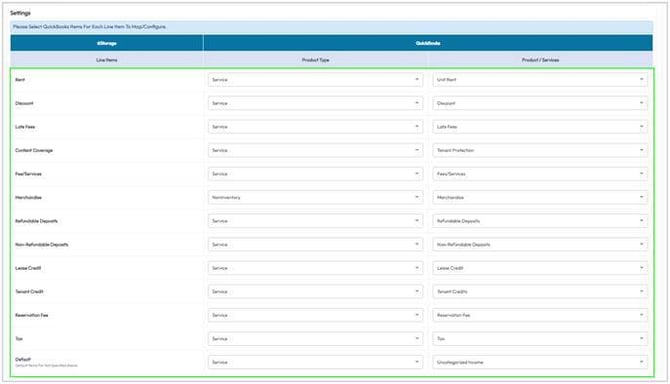
Example of completed 6Storage line item mapping
8. Map refund accounts
Refund account mapping is required so 6Storage can create refund receipts correctly in QuickBooks. Map each refund type to the appropriate QuickBooks account.
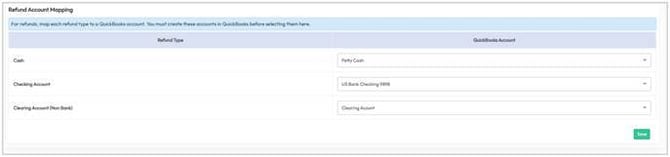
Refund Account Mapping section
Recommended refund account mapping|
Refund mapping field |
Recommended QuickBooks account |
|
Cash |
Map to the QuickBooks cash account, often named Cash on Hand or Petty Cash. |
|
Checking Account |
Map to the checking account that receives the related deposits from the payment processor or bank feed. |
|
Clearing Account (Non-Bank) |
Use a clearing account for non-cash activity that needs to be recorded but does not directly affect the bank account or cash balance, such as tenant credit activity. |
Example: If a tenant pays using an existing tenant credit, there is no new cash deposit. The clearing account helps record that the tenant credit balance decreased without incorrectly increasing cash or bank activity.
If the clearing account does not already exist in QuickBooks, create it before completing refund account mapping.
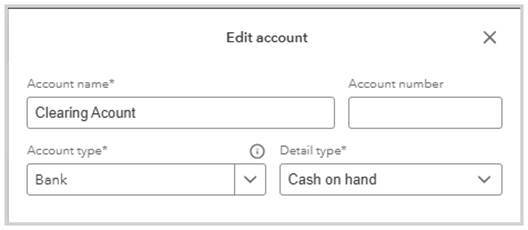
Example clearing account setup in QuickBooks
10. Save the integration setupOnce all line items and refund accounts are mapped, select Save. The QuickBooks integration setup is complete after the mappings are saved successfully.
11. Manage transactions after setup
To review transactions created in QuickBooks, go to Sales & Get Paid > Sales Transactions.

QuickBooks Sales Transactions page
12. Match transactions to bank deposits in QuickBooksTo match transactions to bank deposits, go to Accounting > Bank Transactions > Find Transactions. Select Match, then choose the associated transactions.
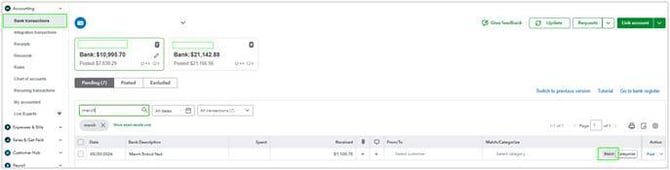
QuickBooks Bank Transactions page
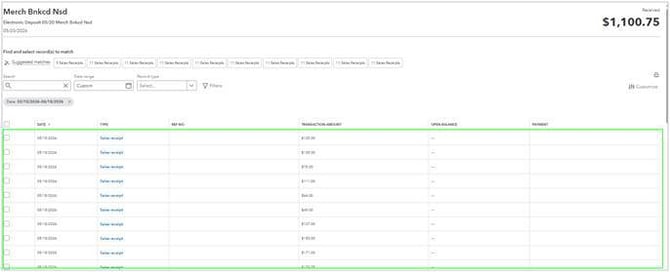
Matching associated QuickBooks transactions