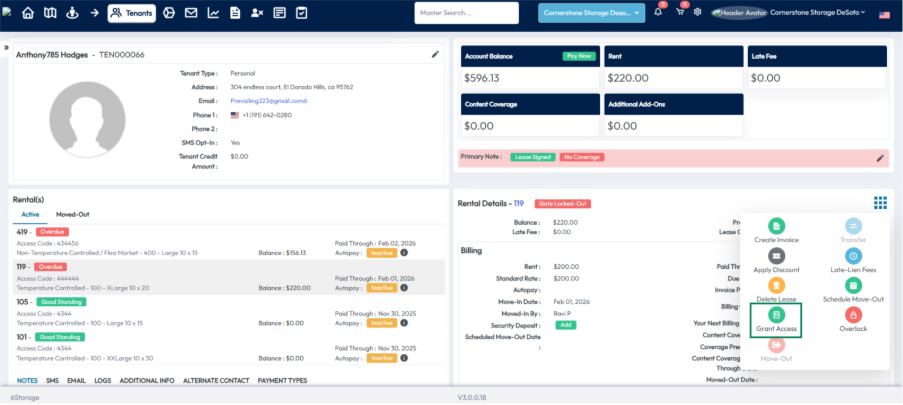
OpenTech Alliance gate access control can be configured separately for each location. Integrating OpenTech Alliance with 6Storage allows tenant access management and scheduling of access hours and entry points.
Configure OpenTech Alliance Integration
1. Go to Settings >> Integration.
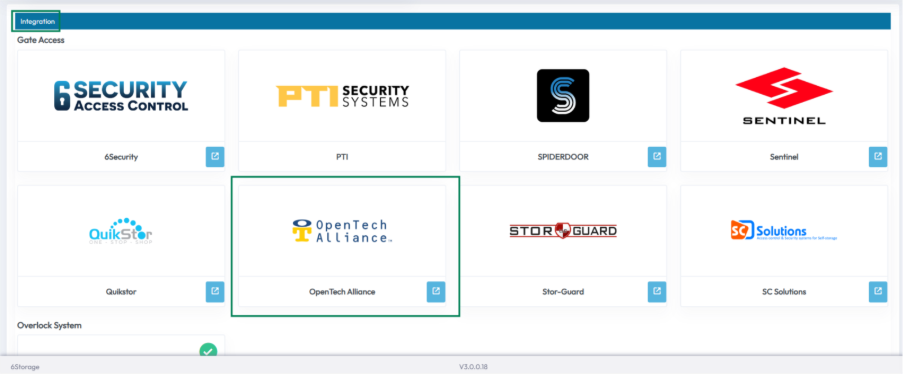
2. Click the OpenTech Alliance option.
3. Select the Facility.
4. Enter the API Key, API Secret Key, and Facility ID provided by the OpenTech Alliance technical team.
5. Click Save.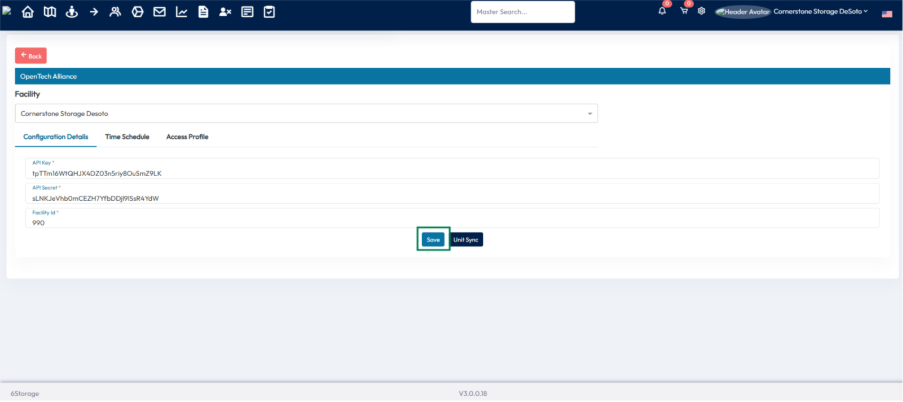
Once saved, the Time Schedules (Access Hours) and Access Profiles (Keypads) created in OpenTech Alliance console are synced and available in 6Storage.
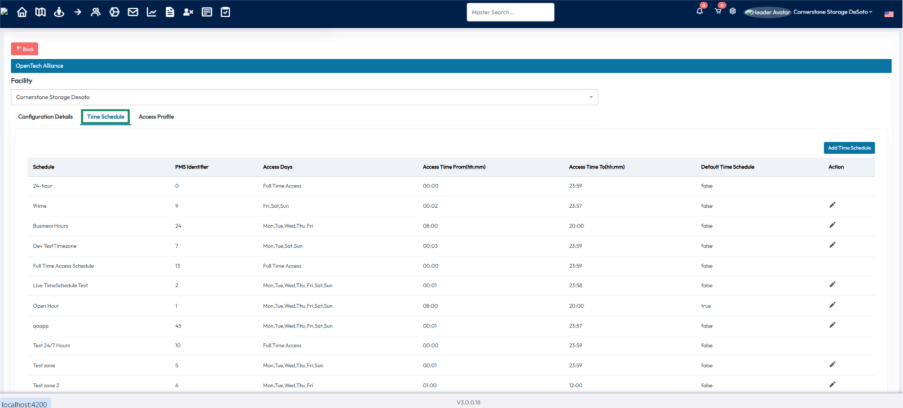
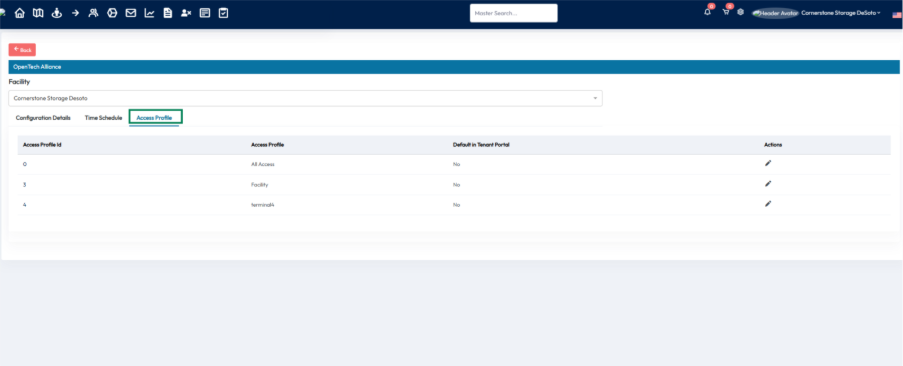
Time Schedules (Access Hours)
You can add Time schedules in your 6Storage account. Time schedules control when tenants can access the facility.
- All saved time schedule details are reflected in the OpenTech Alliance console.
- Multiple time schedules can be created and updated as needed. Each schedule is saved individually.
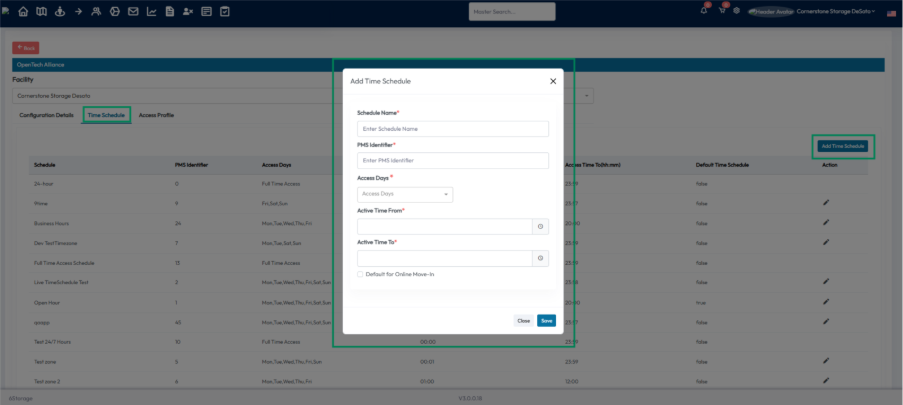
To create a time schedule:
- Select the access days.
- Choose the access time range.
- Enter a name for the schedule.
- Save the schedule.
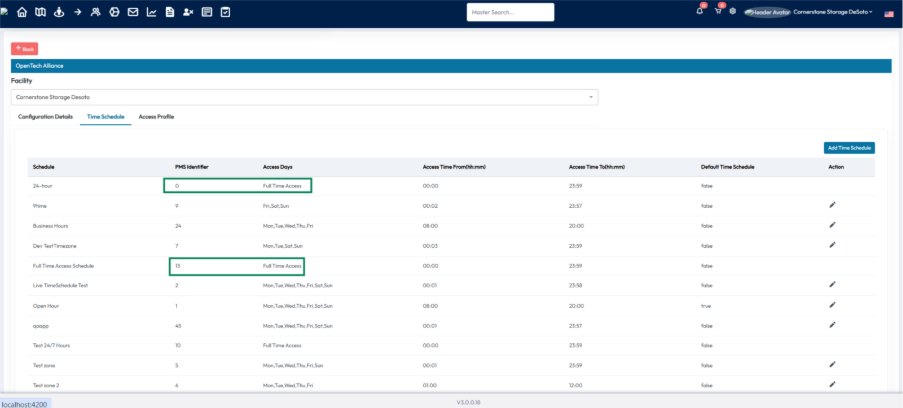
If all days are selected in the Access Days field and the time is set from 00:00, the schedule is treated as Full Time Access. This schedule cannot be edited.
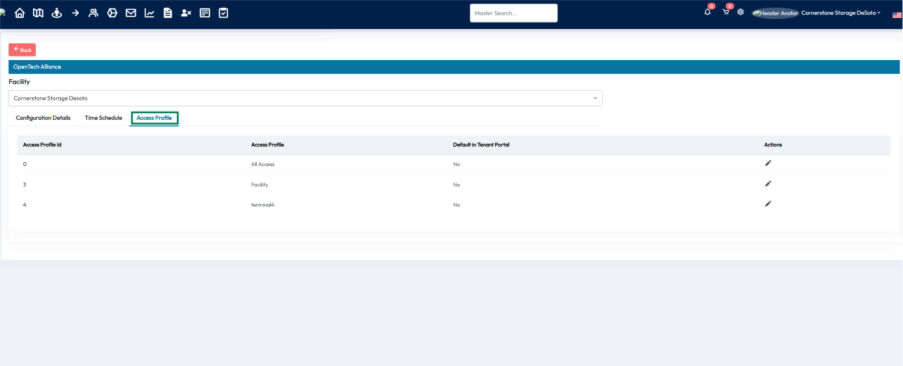
Access Profiles (Keypads)
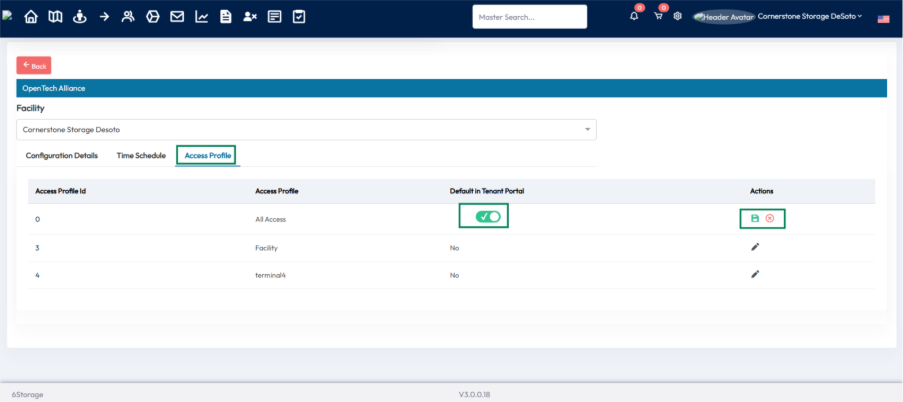
Access profiles can only be created and managed through the OpenTech Alliance console. They cannot be created or deleted in 6Storage.
Any access profiles configured in the OpenTech Alliance console are automatically displayed in the 6Storage admin portal under the corresponding location.
Settings
One Access Profile (Keypad) must be turned on as default for online rentals.
Unit Sync
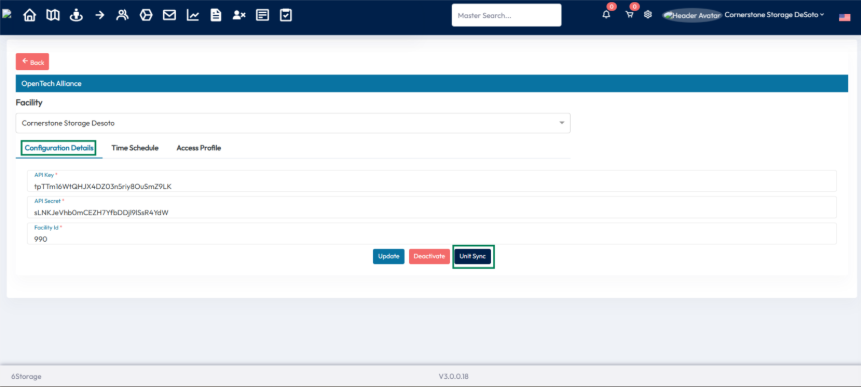
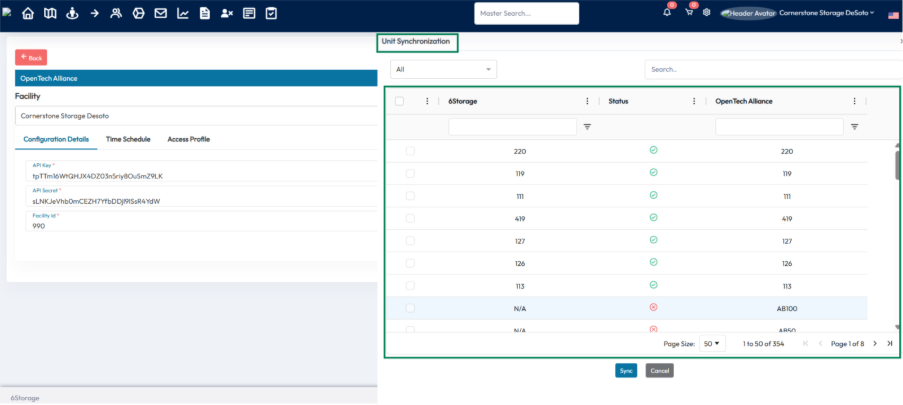
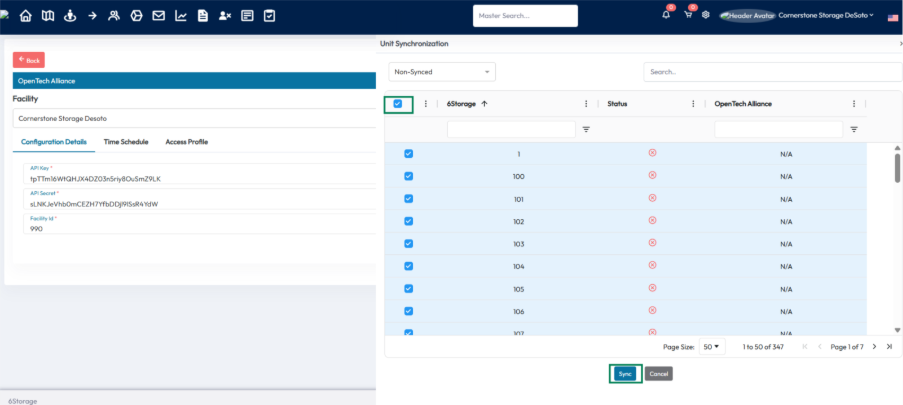
Under Configuration Details, you must sync the Units in order to pull them into your 6Storage Account. Clicking the “Unit Sync” button opens a slider displaying the list of units along with their sync status (Synced/Non-Synced).
Filtering Units
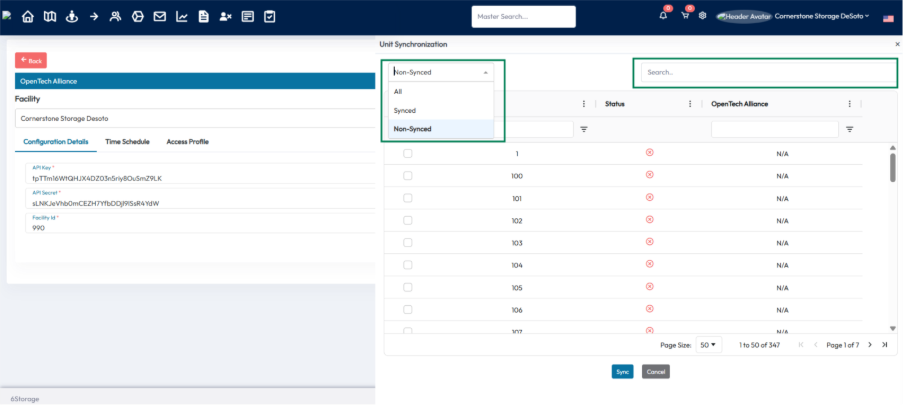
At the top of the slide-in screen, there is a filter with three options:
- All (default) - Shows all units.
- Synced - Shows only units already synced with Open Tech.
- Non-Synced - Shows only units not yet synced.
Syncing Units
- Units can be selected for syncing by:
Checking individual checkboxes next to each unit.
Using the header checkbox to select all units (bulk selection).
- After selecting, click the “Sync” button to sync the selected 6Storage units with Open Tech.
Testing the Integration
After completing the integration, perform a test move-in or add a gate code to an existing tenant to verify that the setup is working correctly.
Move In
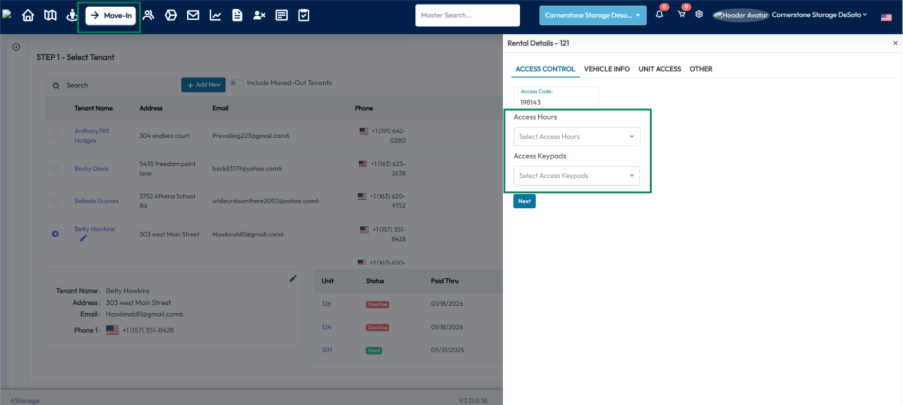
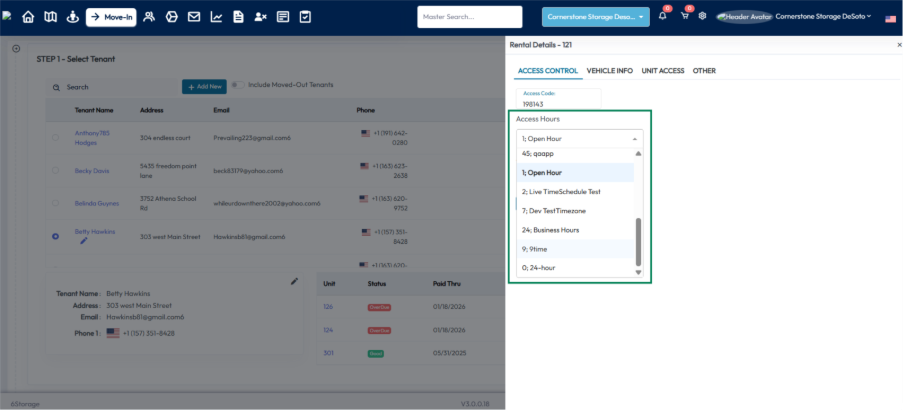
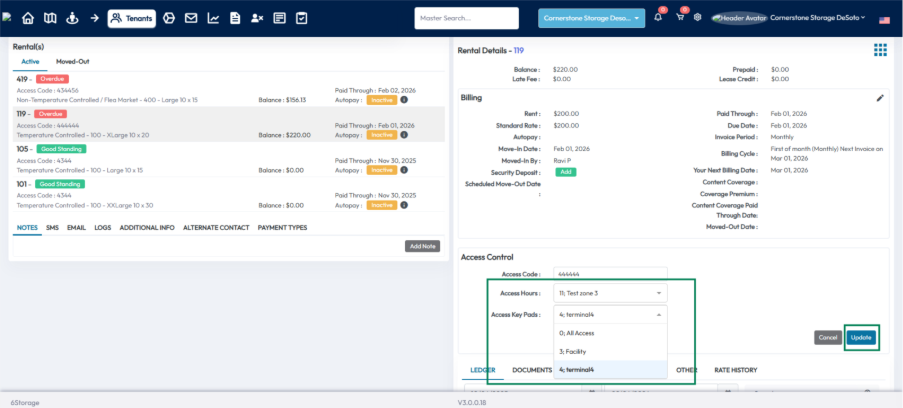
When integrated with OpenTech Alliance, the Access Hours and Access Keypads fields display the available Time Schedules and Access Profiles during tenant move-in. One Time Schedule or Access Profile can be selected for each field.
Editing Access
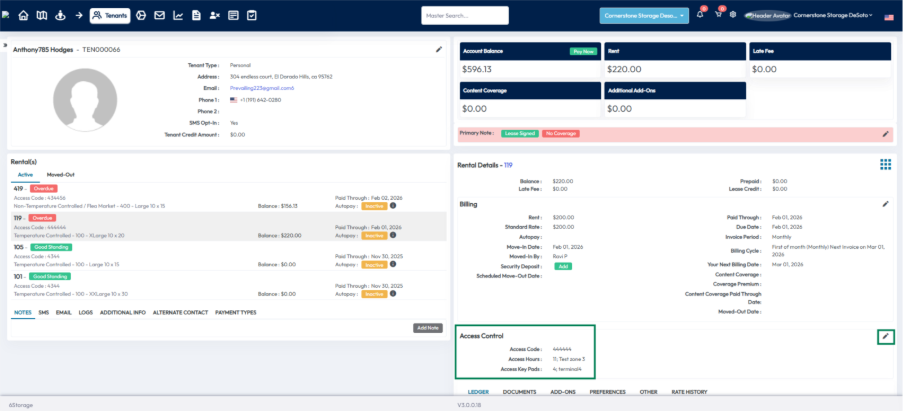
On the Tenants page, the Access Hours and Access Keypads fields can be updated for an existing tenant. One Time Schedule or Access Profile can be selected for each field, and any changes are reflected in the OpenTech Alliance.
Move-Out
When a tenant moves out, the unit status in OpenTech Alliance will be updated to Vacant.
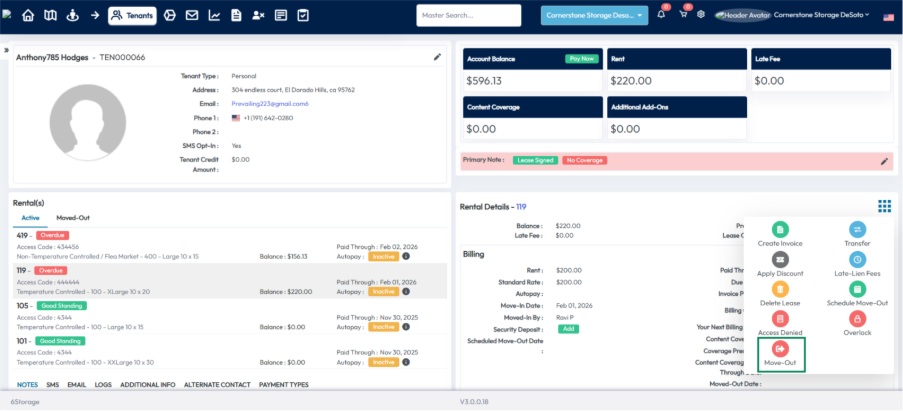
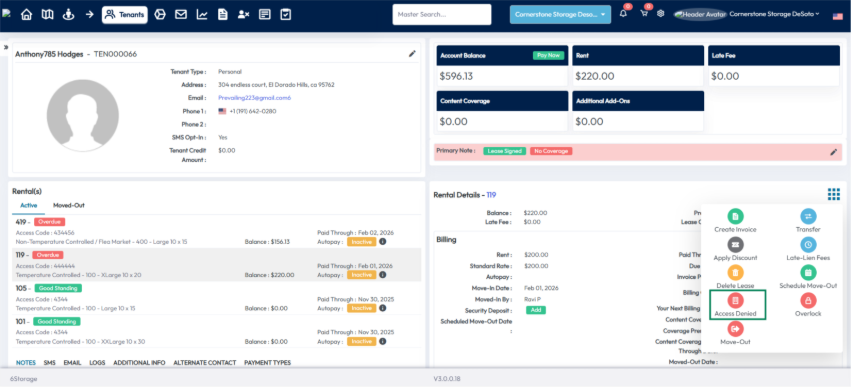
You can set up your automatic lock-out/grant access settings under Settings > Automation > Delinquency or instructions for performing manually are below.
Suspend Access
Clicking the Access Denied button disables all access. The unit status in OpenTech Alliance is then updated to Delinquent.
Grant Access
Clicking the Grant Access button reactivates access for a locked out tenant. The unit status in OpenTech Alliance is then updated to Rented.