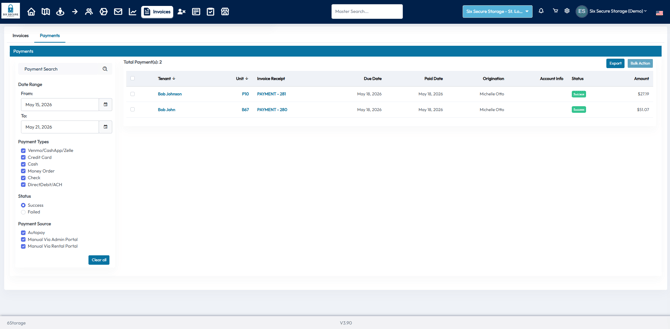
The Invoices tab allows you to view all invoices and receipts created for your tenants. Follow the steps below to navigate and utilize this section efficiently.
Select Invoices or Receipts
Use the options at the top of the page to toggle between the list of invoices and receipts.
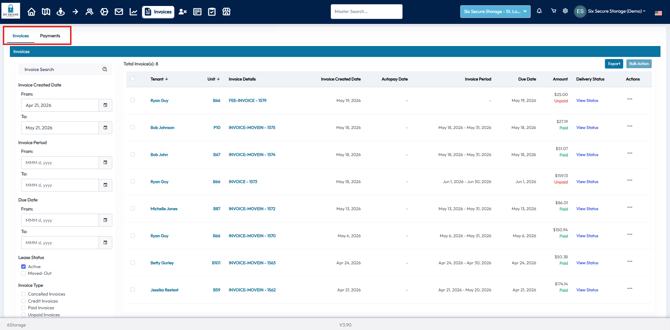
Apply Filters
Use the filters on the left-hand side to narrow down the list based on your preferences.
Exporting the List
-
Use the check boxes on the left of the list to select the invoices you would like to export
- Use the check box in the column heading to select all
-
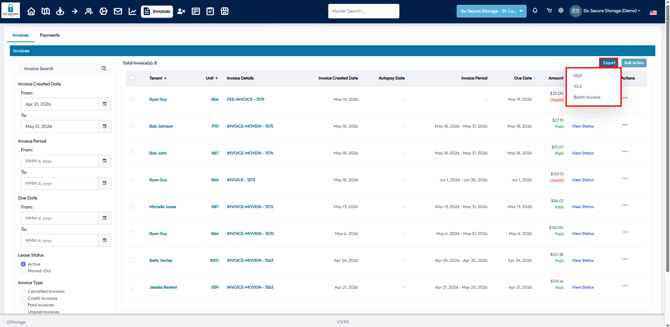
Click the Export button to download the invoice or receipt list as either an Excel sheet or a PDF.
- Invoices can also be exported as a Batch Invoice
- This allows a list of invoices to be added to a single PDF for easy printing
- Invoices can also be exported as a Batch Invoice
Use the Action Button
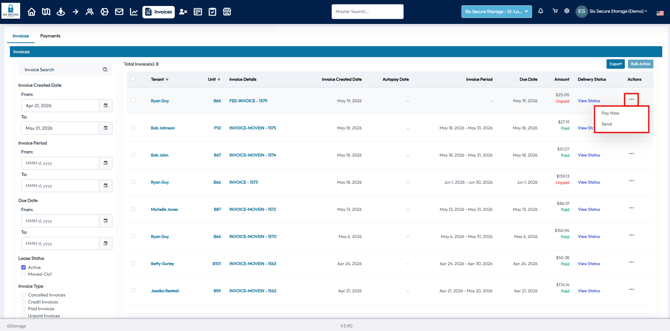
Click the Action button next to each invoice to:
- Pay unpaid invoices
- Resend invoices or receipts to tenants
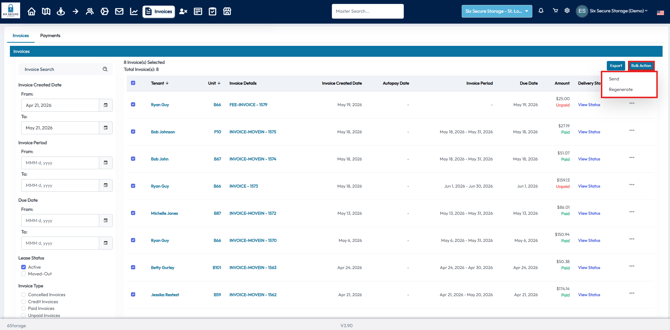
- Selecting multiple invoices with the the checkboxes will also give you the Bulk Action option
- This can be used to Send or Regenerate these documents in bulk
Viewing Invoice Details
For each invoice, you can view the following information:
- Tenant name
- Unit number
- Creation date
- Invoice period
- Amount due
- Payment status
Viewing Receipt Details
For each receipt, you can see:
- Tenant name
- Unit number
- Payment date
- Payment amount
- Autopay date (if applicable)