
6Storage allows you to create custom logic for when a document should be generated during a move-in. For example, you might have drive-up units and parking spaces at your facility and you only want a parking addendum to generate when someone answers "Yes" to storing a vehicle.
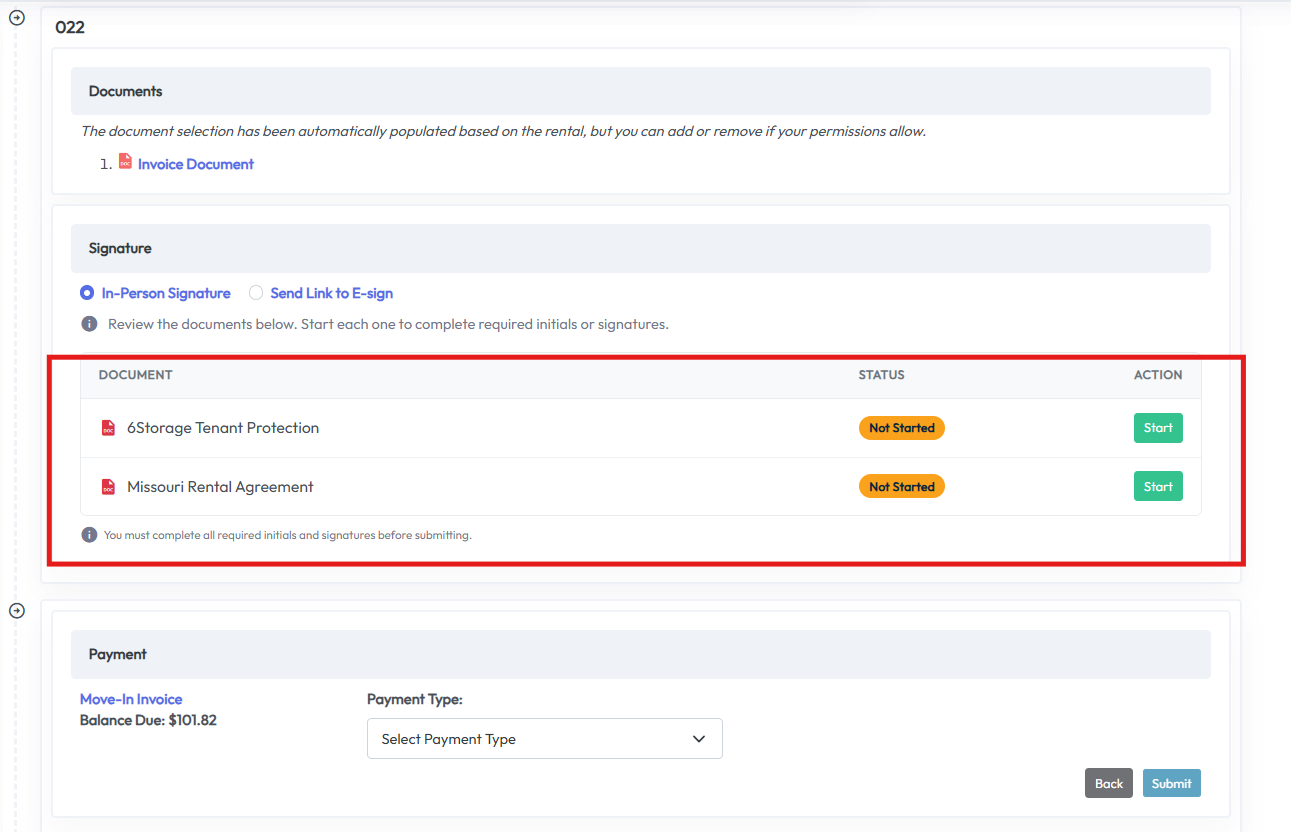
The documents that generate during a move-in are based on the Move-In Document Config settings.
The image below is an example of where you see the documents generate/populate on page two of the move-in:
This article will walk you through the Move-In Document Configuration settings and explain each "Condition." *Note that you must have a document uploaded/set-up under “Documents” before you’re able to configure it for move-ins.
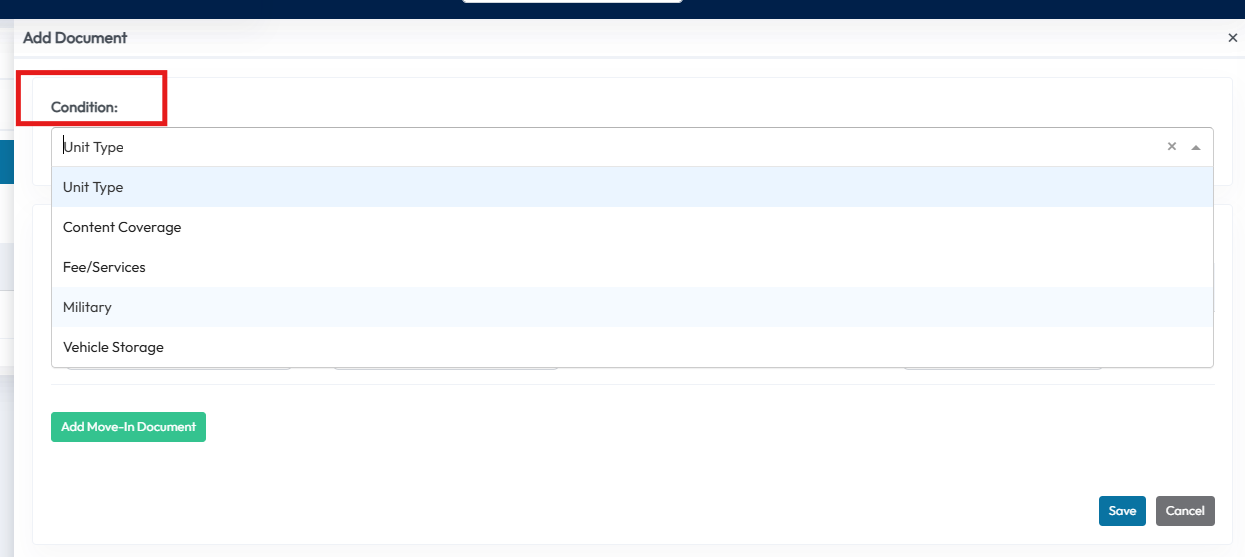
When configuring your move-in documents, you'll first choose the Condition. Each Condition then has its own set of associated dropdowns. The Conditions include:
- Unit Type
- Content Coverage
- Fees/Services
- Military
- Vehicle Storage
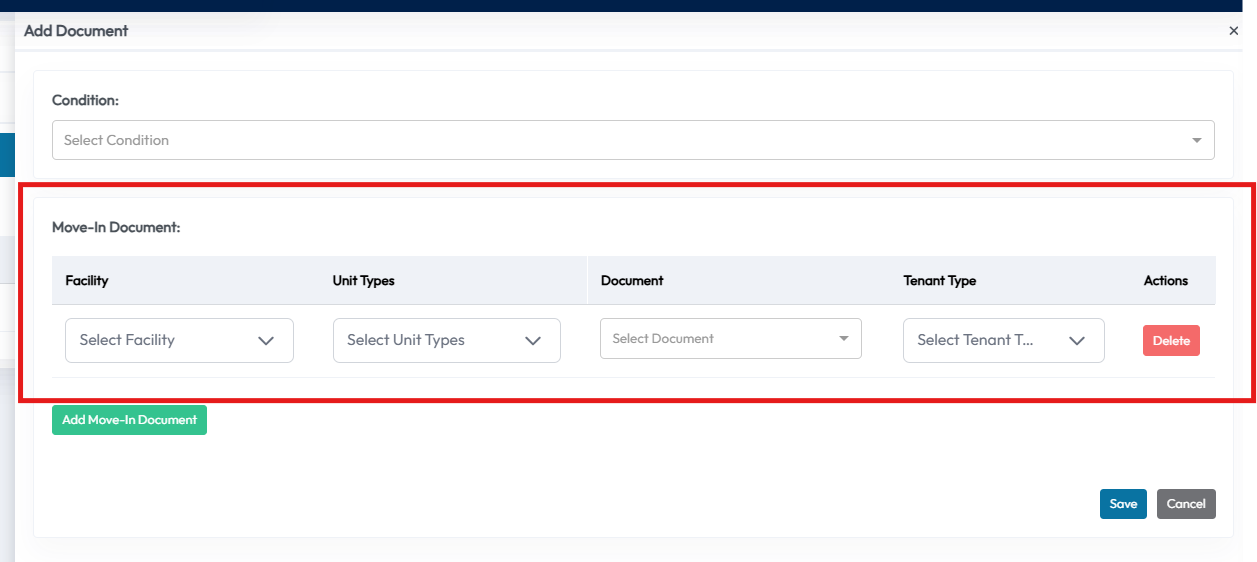
Unit Type - used when you want a document to generate based on its Unit Type.
- Choose the Facility from the first dropdown.
- The Unit Type dropdown will then populate based on that facility’s unit types.
- Select the Document and Tenant Type(s).
- Save or Add
Content Coverage – used when you want a document to generate based on Content Coverage Selection. *Be sure to check your Content Coverage settings to ensure they are set up properly/to your liking.
- Choose the Facility from the first dropdown.
- The Content Coverage dropdown will then populate based on that facility’s Content Coverage options/plans/settings.
- Select the Document and Tenant Type(s).
- Save or Add
Fees/Services – used when you want a document to generate based on a fee or service that is chosen at move-in. Example – you have dumpster use set up as service, a tenant chooses it during move-in, and you want a dumpster rules document to generate. *Be sure to add your fee/services options under Settings -> Financial -> Add-Ons -> Fees/Services.
- Choose the Facility from the first dropdown.
- The Fee/Services dropdown will then populate based on that facility’s Fee/Services settings.
- Select the Document and Tenant Type(s).
- Save or Add
Military – used when you want a document to generate based on a tenant answering “Yes” to being Active Military.
- Choose the Facility from the first dropdown.
- Select the Unit Types
- Select the Document and Tenant Type(s).
- Save or Add
Vehicle – used when you want a document to generate based on a tenant answering “Yes” to storing a vehicle. *To utilize this move-in document configuration, you’ll want to ensure this question is turned on under Settings -> Customizations -> Move-In/Fields -> Unit Info.
- Choose the Facility from the first dropdown.
- Select the Unit Types
- Select the Document and Tenant Type(s).
- Save or Add
Save or Add Move-In Document
- Note that multiple documents can be added to each Move-In Document Condition, but separate configurations will need to be set-up if you have multiple Conditions and/or varying conditions per facility.
Notes:
- Changes to Move-In Document Configurations are not retroactive. If you've performed a move-in prior to an addition or edit to the configuration, you will need to contact help for assistance with your prior move-in.