Operators can customize their Rental Hub using the Rental Hub Customization Settings in the Admin Portal. This makes the rental process unique to each facility so the process matches how your facility operates.
More information about these settings can be found here: https://help.6storage.com/knowledge-base/settings-rental-hub
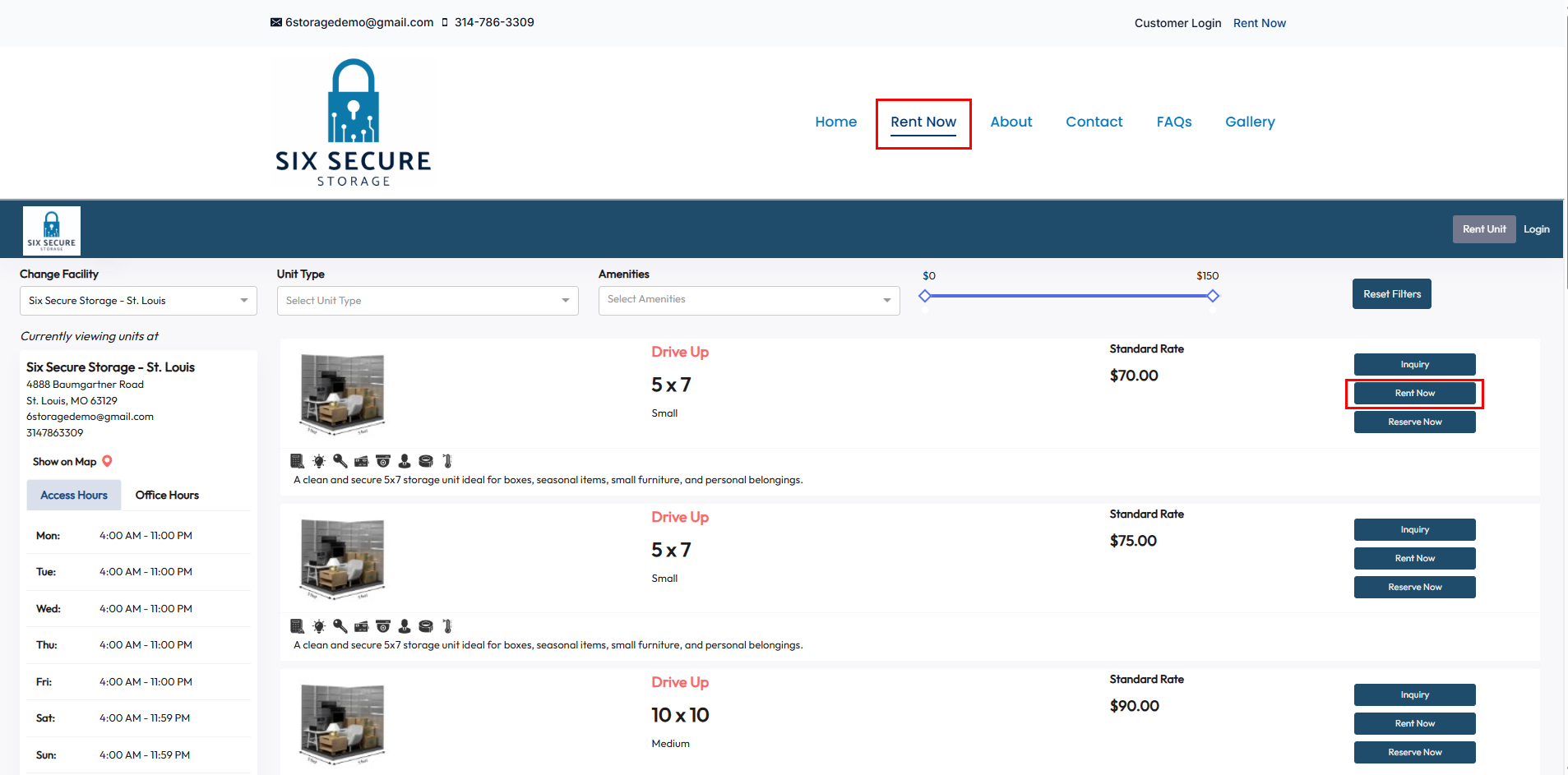
Each website can be unique but most will have a Rent Now option where potential renters can look through the available units and begin the rental process
- After the tenant finds the unit they would like to rent in the list they can select Rent Now
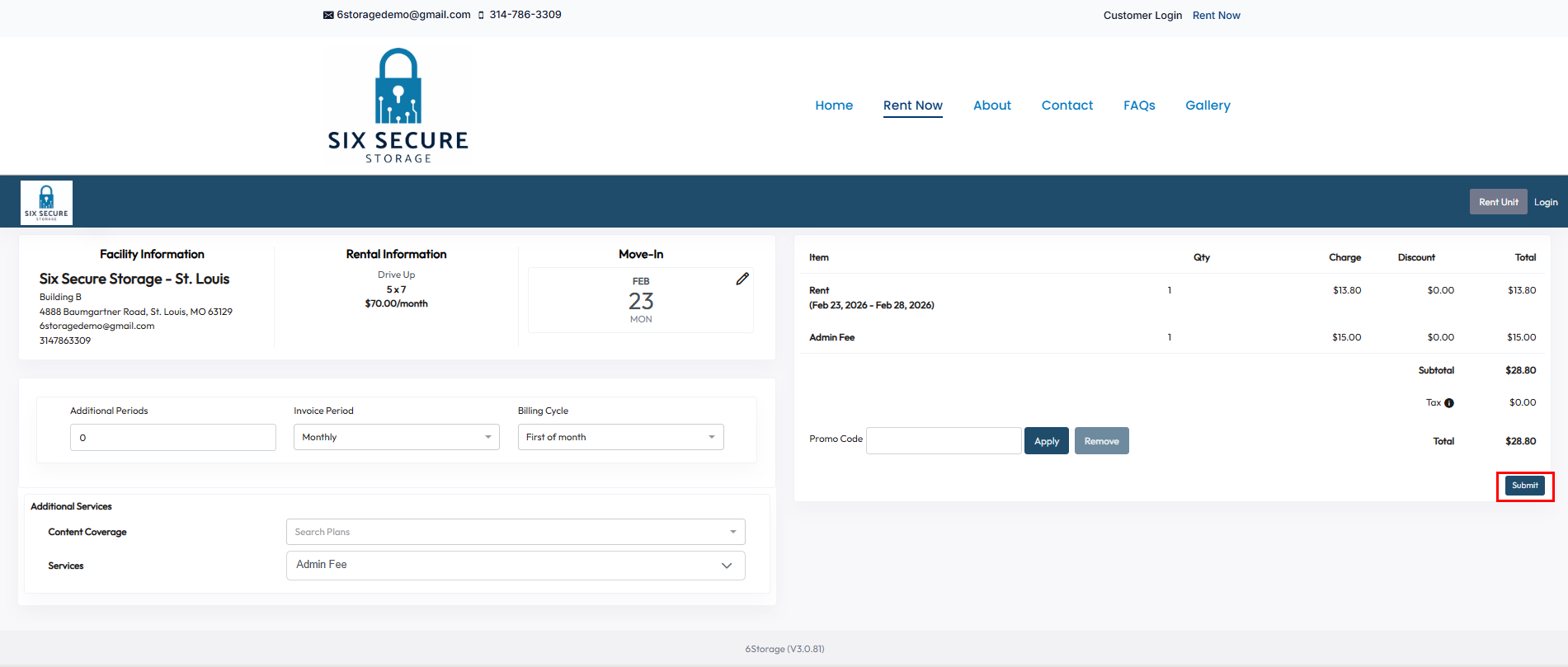
- The first step will allow the renter to select a few options for their rental
- Move-In Date - The day the tenant plans to move in
- Additional Periods - Additional billing periods the tenant plans to pay for during the move in process
- Invoice period - How long will each billing period be
- Most common options are Monthly, Quarterly, Semi-Annual, and Annual
- Billing Cycle - Tenants can be billed on the First of Month or on the Anniversary of their move in date
- Renters can also see any Additional Services
- This includes addons such as content coverage, fees, and services
- These can either be optional or mandatory depending on the facility's operations
- The Promo Code field will allow renters to enter a promo code associated with any discounts the operator has configured in the Admin portal
- The renter can the select Submit to move on to the next step
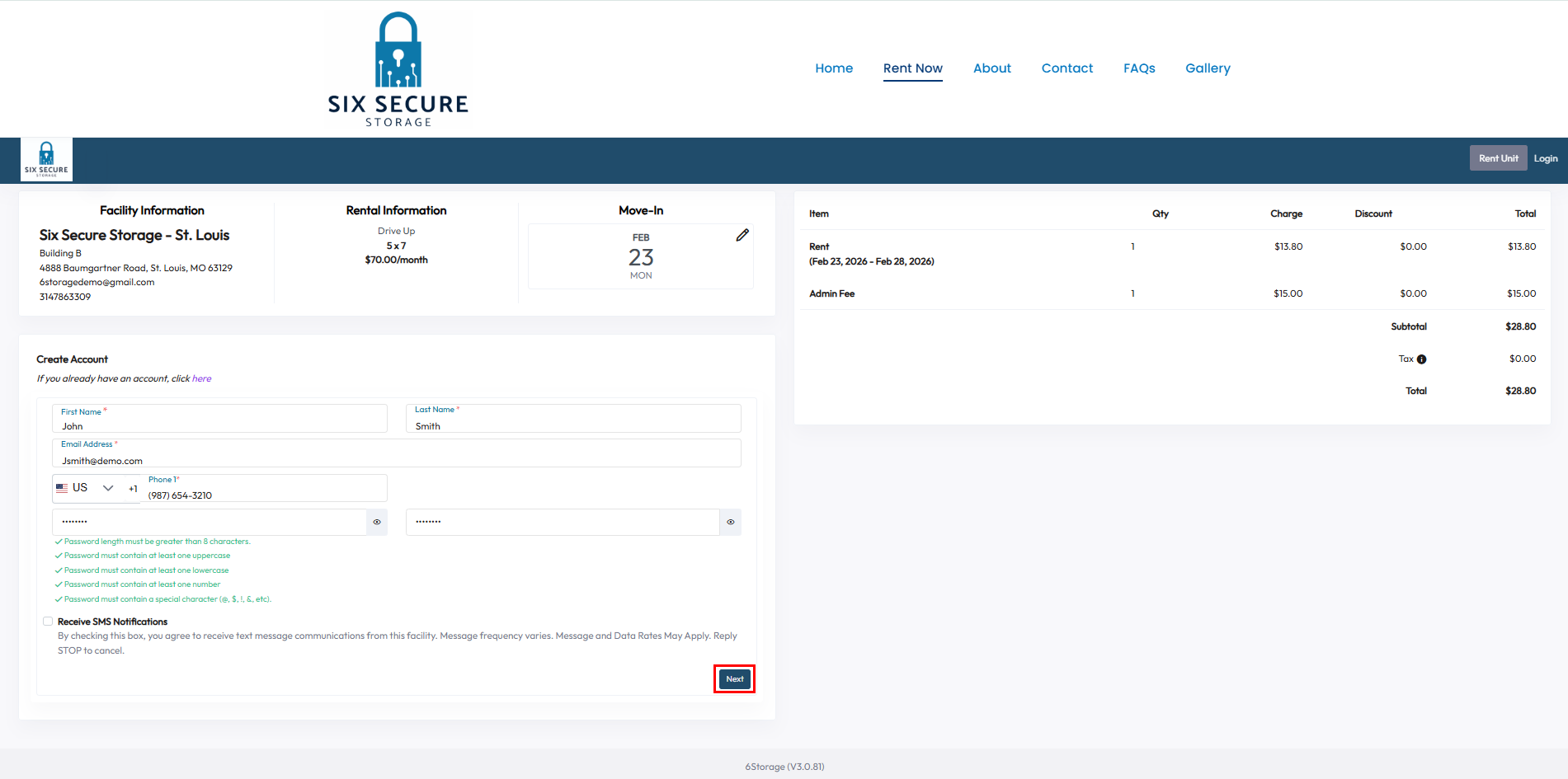
- If this is the renter's first time staying at your facility they will have to create an account
- This step requires they provide a First Name, Last Name, Email Address, and Phone Number
- They will also have to create a Password
- The password requirements are:
- Length Greater than 8 Characters
- At least 1 uppercase letter
- At least 1 lowercase letter
- At least 1 number
- At least 1 special character (@, $, !, &, etc)
- Select Next to continue
- If the tenant has stayed at your facility in the past they can select the "Already have an account, click here" option
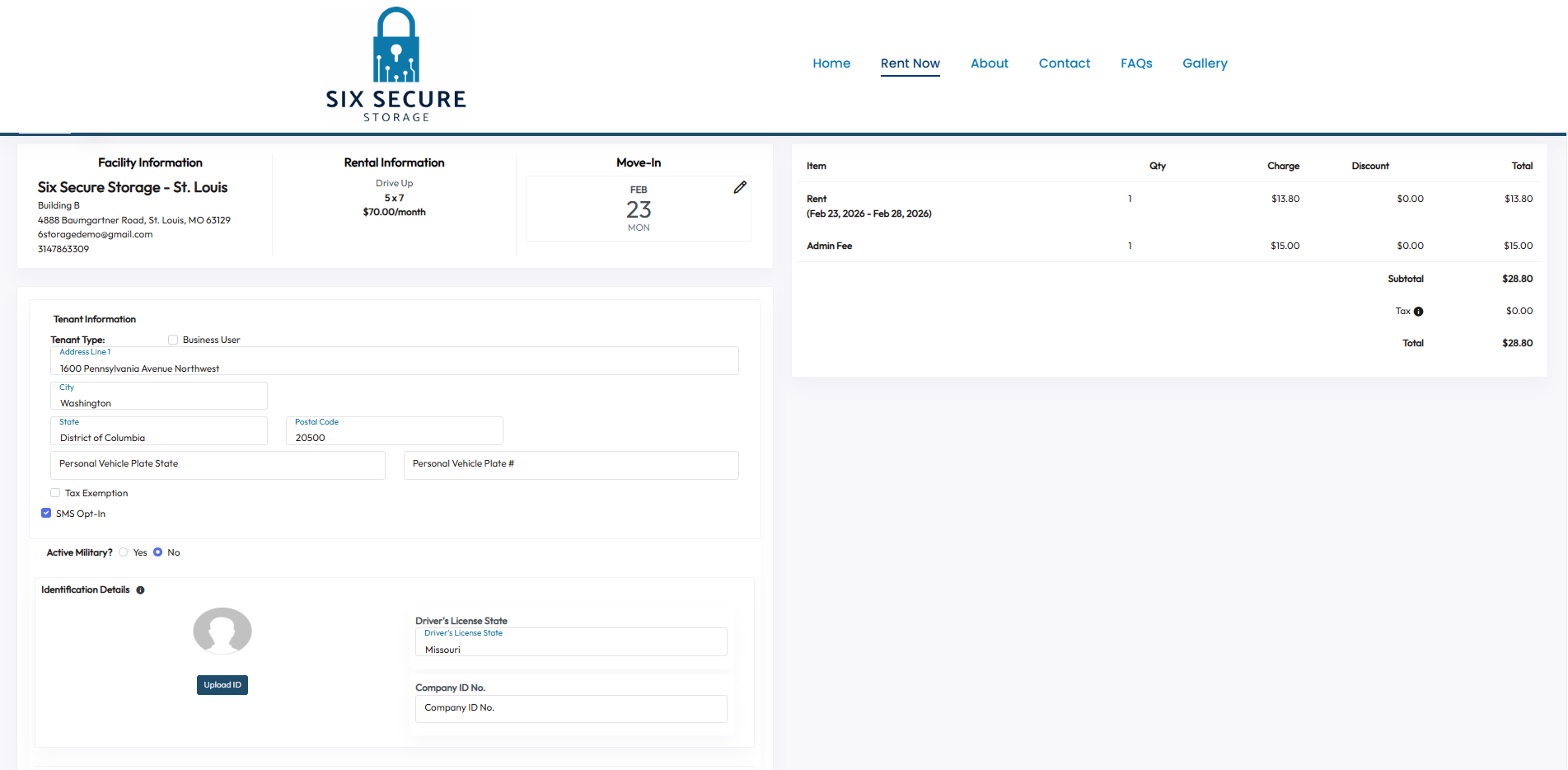
- The second step is to add the Tenant Information
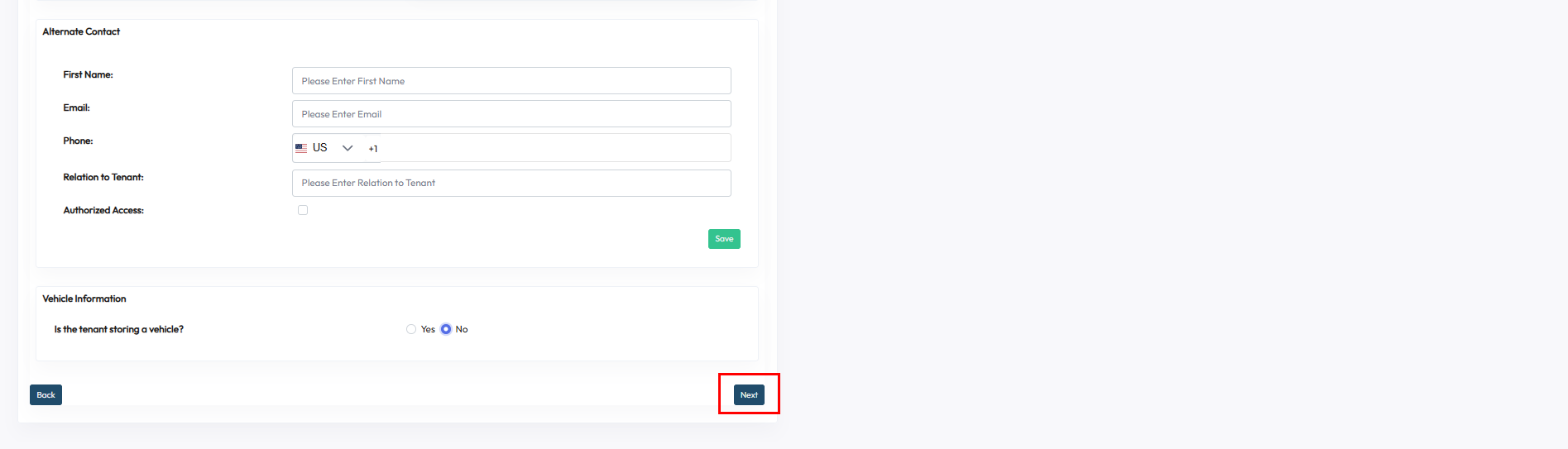
- This includes things such as Address, Military status, Identification details, Alternate Contact information, and Vehicle Information
- Tenants can select Next to continue after the information has been added
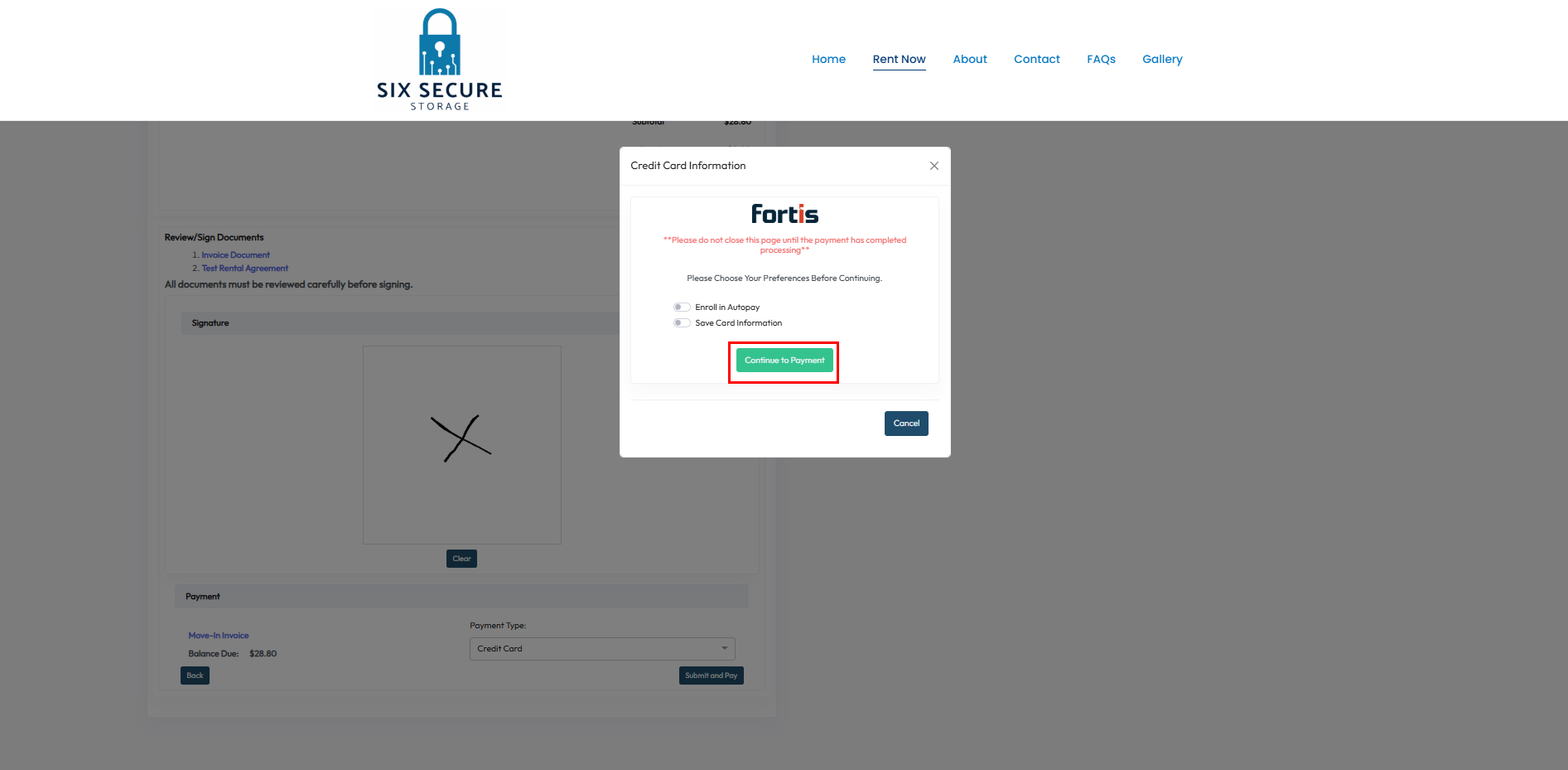
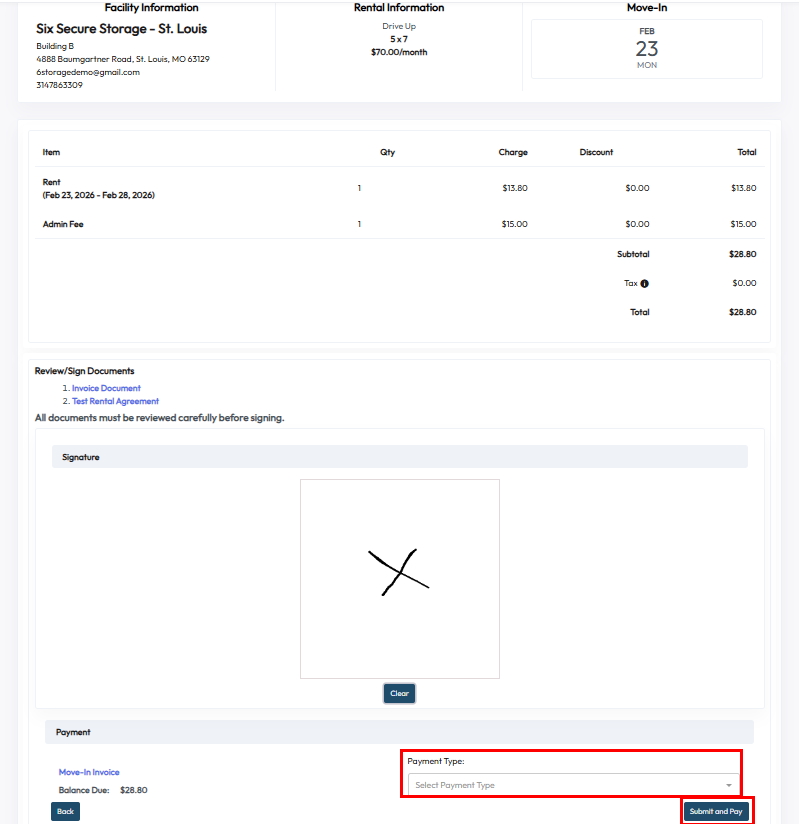
- The final step is to review any charges, view any documents, sign the agreement, select a payment method and pay
- The items they will be billed for are listed at the top
- Any available documents will be listed in the middle
- Tenants can esign directly in the box below
- When the tenant is ready to pay they can select a payment method from the Payment Type drop down and click Submit and Pay
- This will open the payment processor where tenants will be asked if they would like to enroll in autopay or save card information for future use
- When the tenant is ready they can simply click Continue to Payment and add their card details