-
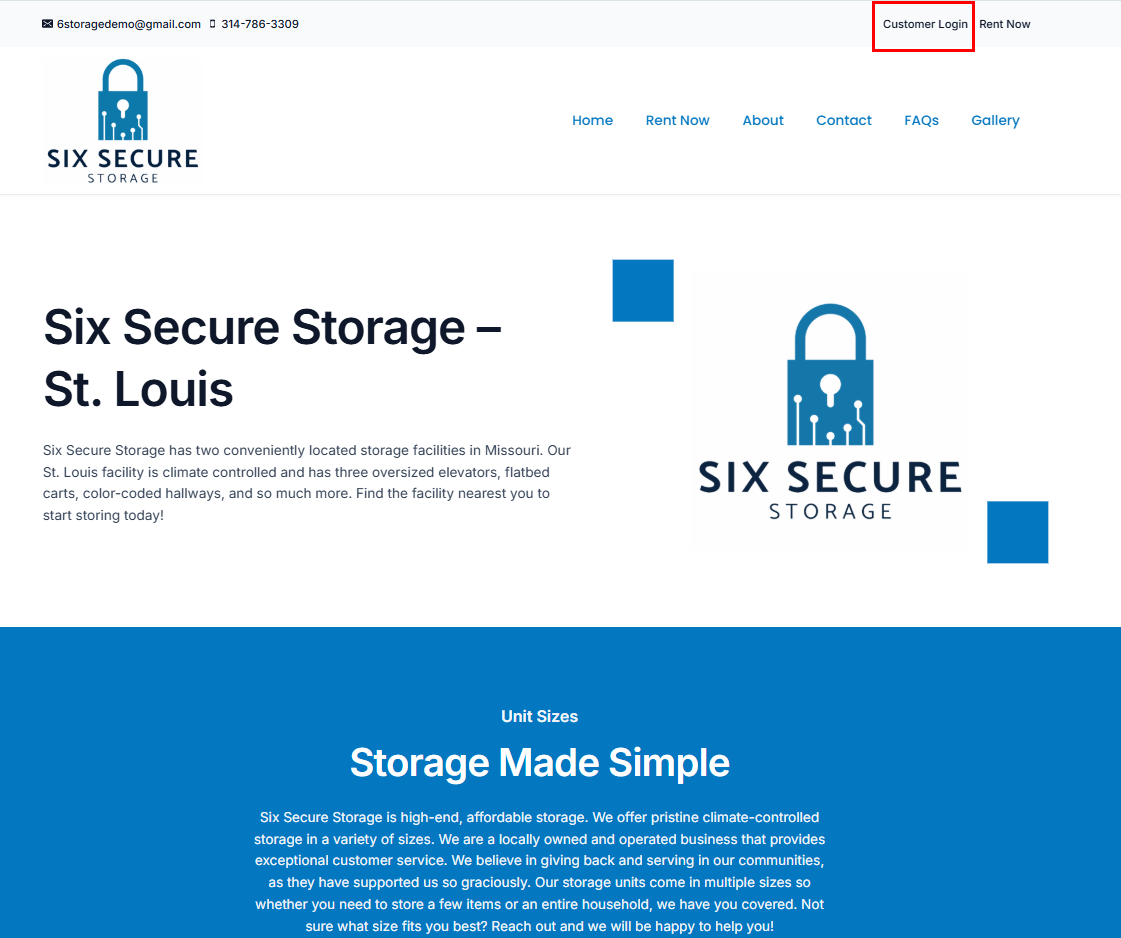
Websites can be unique to each business so they may all look slightly different.
-
Most 6Storage websites will have an option for the Customer Login in the top right
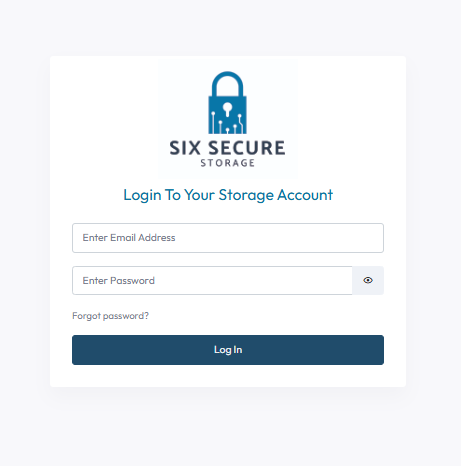
- This will take you to the log in screen
- Your username will be the Email Address you provided during the sign up process
- If you do not know your password simply select Forgot Password to have a password reset sent to your email address
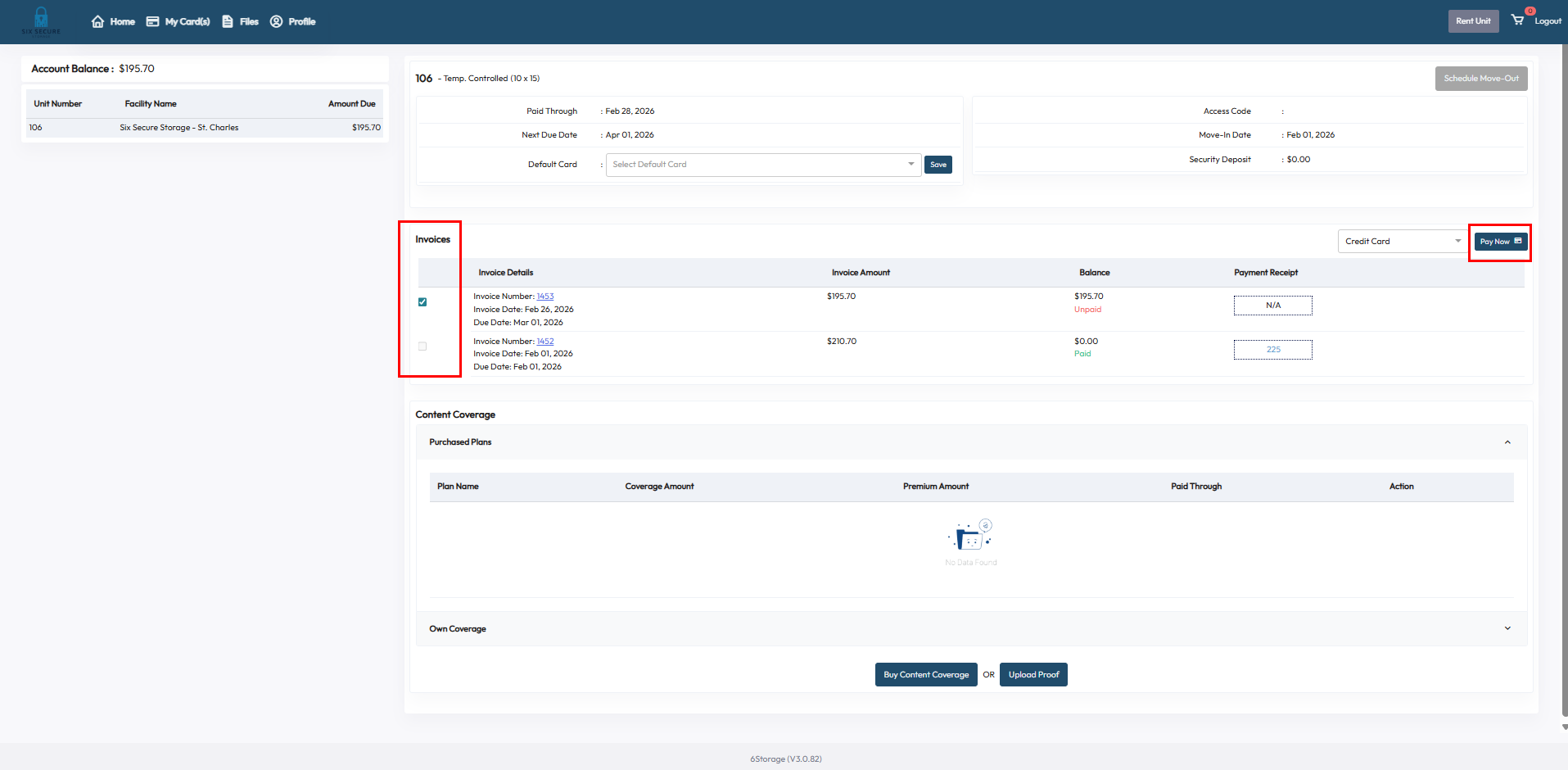
- Here you can see a list of invoices both paid and unpaid
- You can use the check boxes on the left to select the invoices you would like to pay
- Click Pay Now to proceed with the payment
- If the facility has multiple payment methods available you can select from the drop down next to the Pay Now button
- The payment processor window will then open and you will be asked to select billing preferences
- You can choose to Save Card Information for future use, Enroll in Autopay, or both
- Select Continue to Payment to add payment details and Submit the payment
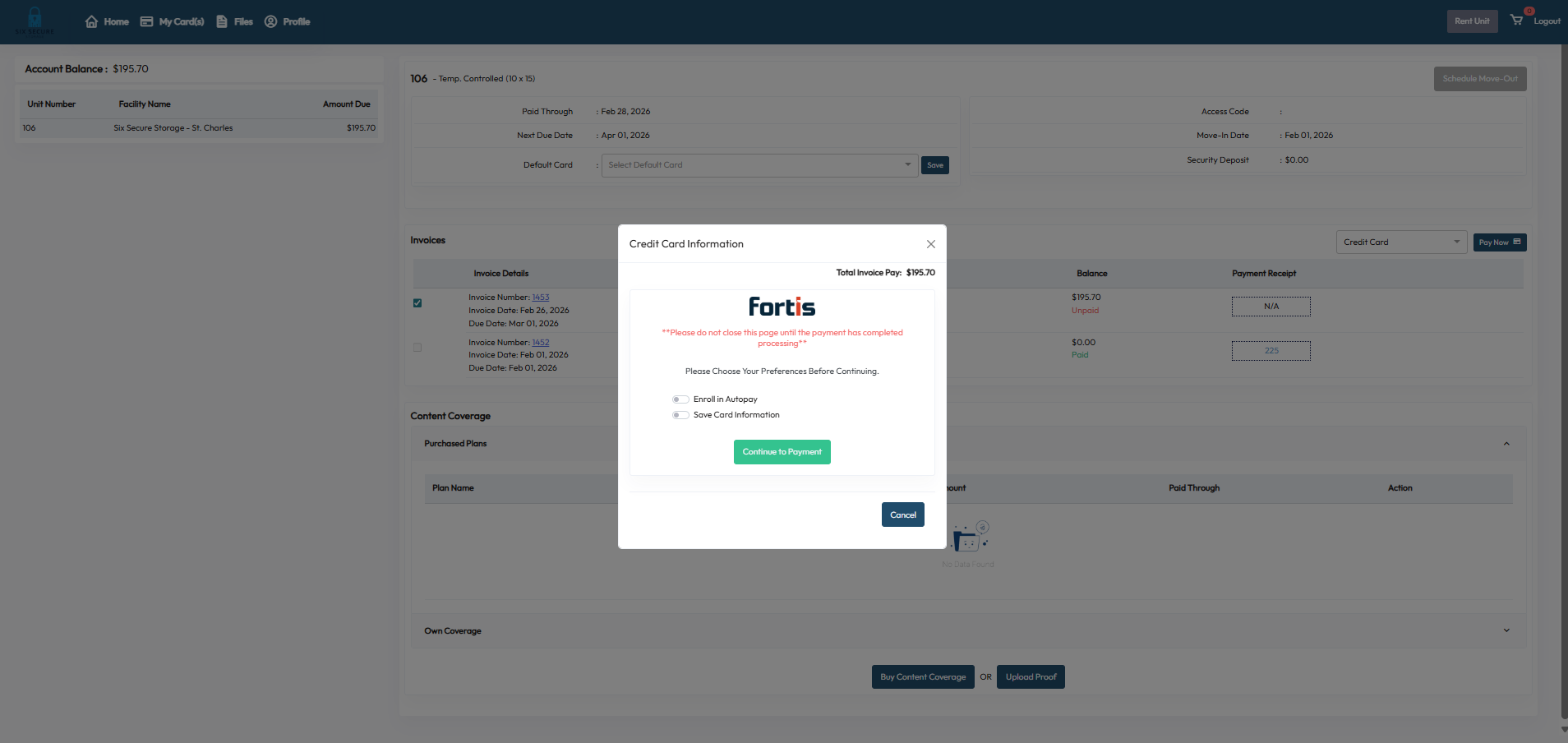
Saving a card for autopay
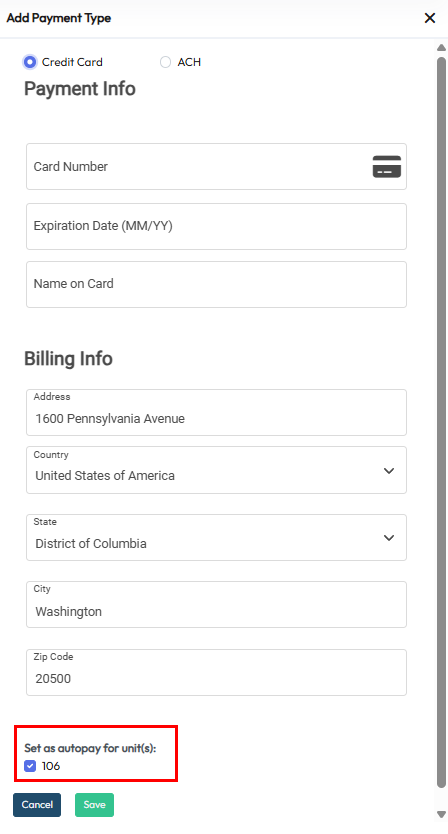
- You can add a card to your profile by simply selecting My Card(s) from the top of the screen and choosing Add Card
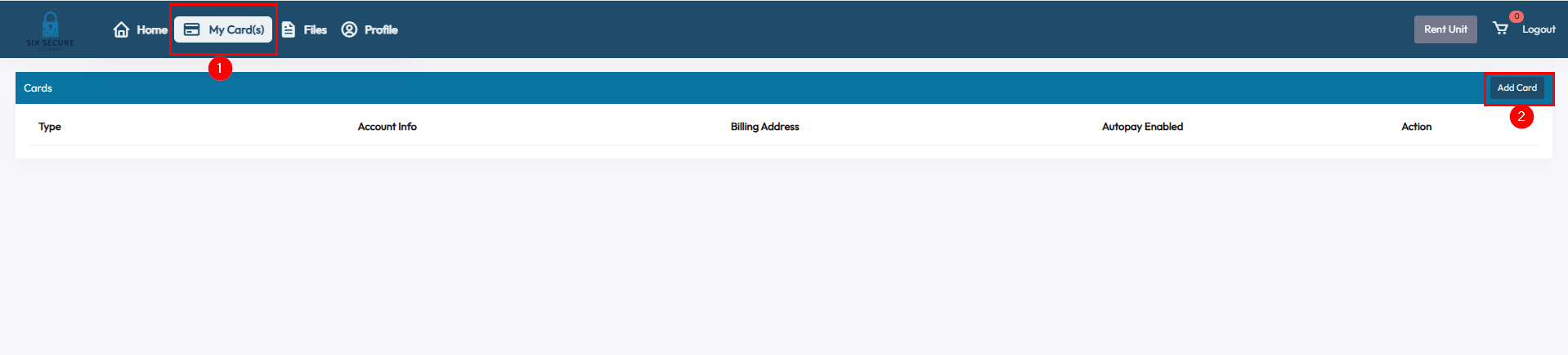
- Here you can add the Payment and Billing Information for your new payment method
- You can also use the check boxes at the bottom to enroll in autopay
- There will be a check box for each of the currently occupied units
- This will allow you to enable different payment methods on autopay for each unit
- Select Save to complete the process