After signing up with DaVinci you can integrate your 6Storage and DaVinci accounts using the steps below.
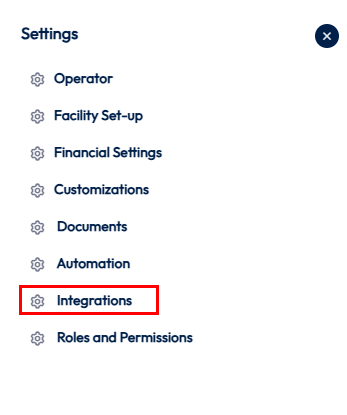
- Navigate to the Settings icon in the top right and click Integrations.
-
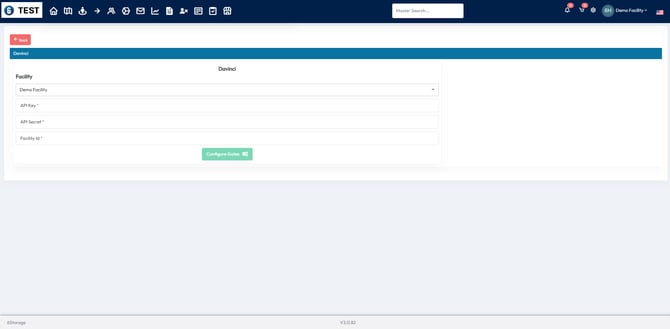
To integrate a DaVinci account with 6Storage you will need:
- API Key
- API Secret Key
- Facility Id
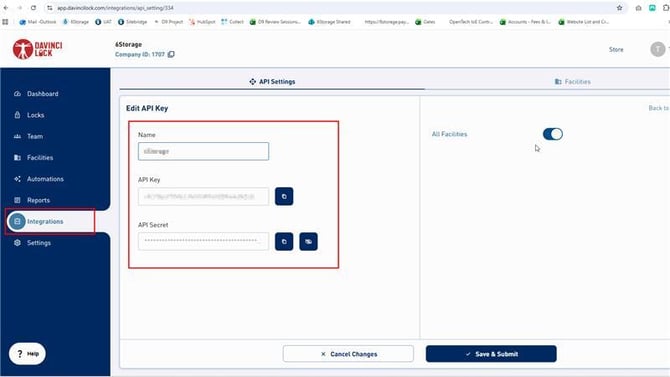
- To get this information you will have to access your DaVinci Account
- https://app.davincilock.com/dashboard
- Here you can go to Integrations and select your Facility
- This should provide you:
- Name (Facility ID)
- API Key
- API Secret
- Here you can go to Integrations and select your Facility
- https://app.davincilock.com/dashboard
Template Edits Required
For use of DaVinci locks for both vacant and overlocking units, you will need to edit some of your templates to match the DaVinci operations. More information on editing templates can be found here:- If you use DaVinci Locks for overlocking past due units you will need to adjust the Overlock Removed template.
- If you use DaVinci Locks for locking vacant units you will need to adjust the Move in Confirmation templates.
- Both templates utilize the <%%LeaseUnlockCode%%> Tag/Merge Field. This will automatically pull the lock's Unlock Code for each unit when the template is sent.
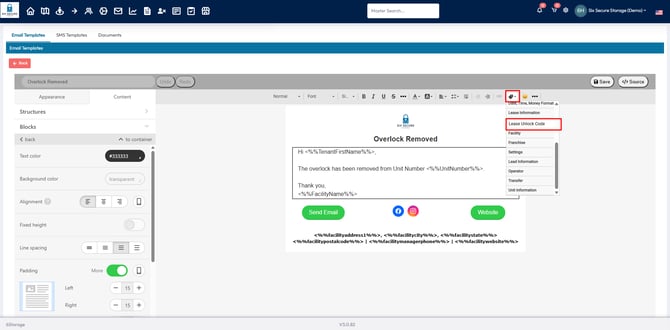
Overlocking Units
-
You can set up an automation under Custom Automations to notify you when to overlock a unit. See more about Custom Automations here.
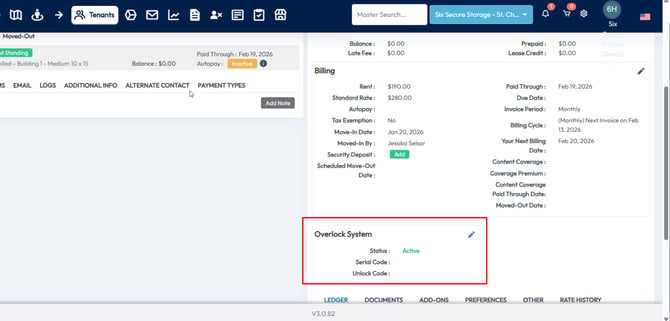
- Upon overlocking a unit, you will need to add the Serial Code of the lock that you put on the unit in the specific leases' profile under the "Overlock System" section. The Unlock Code should automatically pull in.
- You can add this in the Tenant's profile by selecting the edit pencil in the Overlock System section to type in the Serial Code.
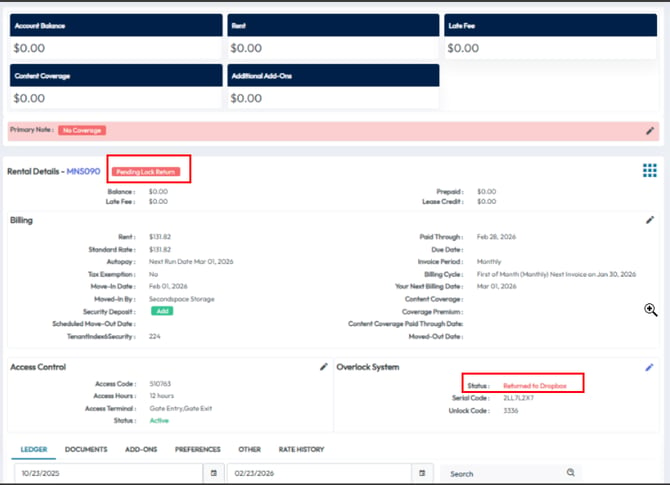
- When a tenant pays and is no longer past due, the tenant will automatically receive the Overlock Removed template that includes the Unlock Code. After a tenant is sent the overlock removed template the tenant profile will display a Pending Lock Return status.
- This helps you keep track of tenants who should be unlocked but may have not come to the facility or returned their lock yet.
- To remove this status use the waffle/grid menu option on the right side of the Rental Details and select Unlock,
Vacant Units
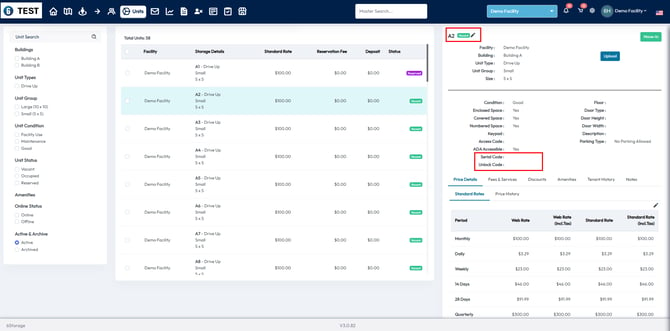
- If you use the DaVinci Lock system to lock Vacant units you can add the Serial Code to units in the units screen.
- Adding the Serial Code here will allow the system to know what Unlock Code needs to be provided to the tenant when the new unit is rented.
- You can add these to units by selecting the unit and then clicking edit pencil in the top right to type in the Serial Code. The Unlock Code should pull in automatically.