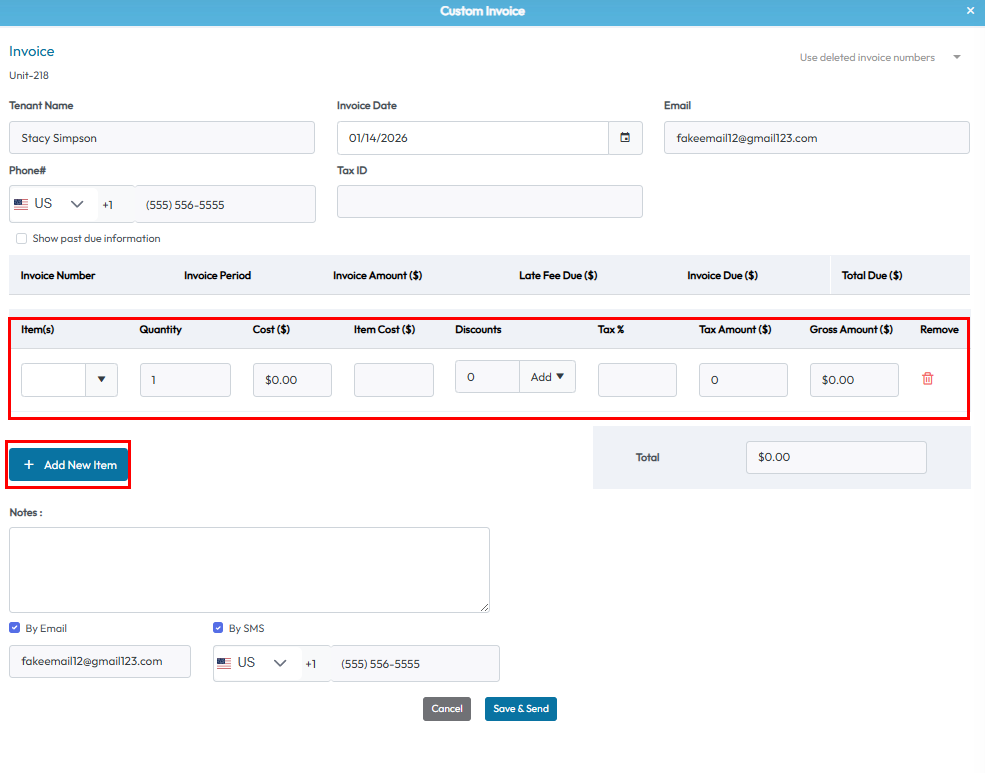
Accessing a Tenant Profile
You can access a tenant’s profile by:
- Using the search bar at the top of the screen
- Clicking on the Tenants tab and selecting a tenant from the list
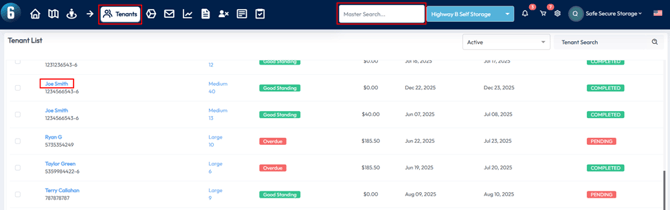
Rental Details Menu Options
The menu button in the top-right of the Rental Details section gives access to key tenant actions:
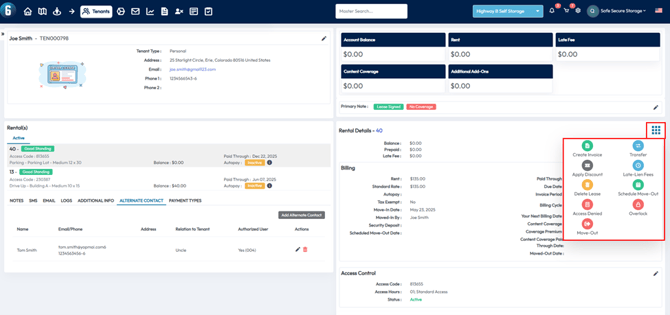
Create Invoice
- Next Invoice – Generate the next billing cycle’s rent invoice
- Custom Invoice – Used for non-recurring charges (e.g., merchandise, one-time fees)
Next Invoice
After selecting Next Invoice you will be able to preview and change what is going to appear on the tenants next invoice.
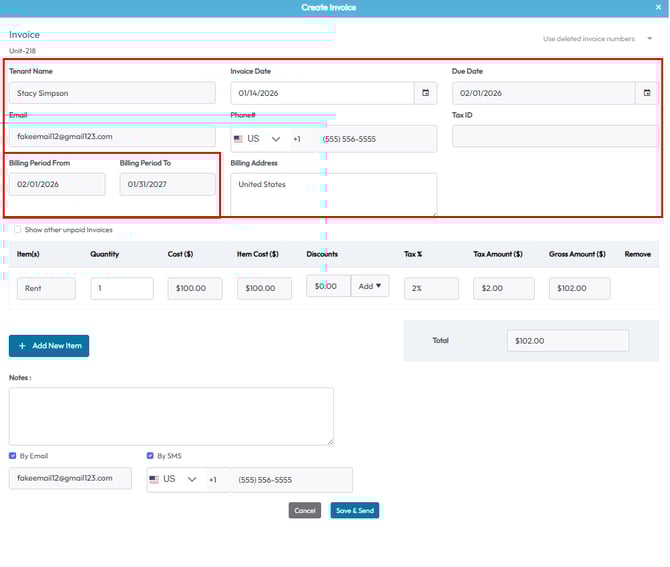
Some of the tenants personal information that will be displayed on the invoice can be previewed at the top.
You can also see when the invoice is being created with the Invoice Date , when the payment is due with the Due Date, and the billing period this invoice will cover for the tenant with the Billing Period From and Billing Period To.
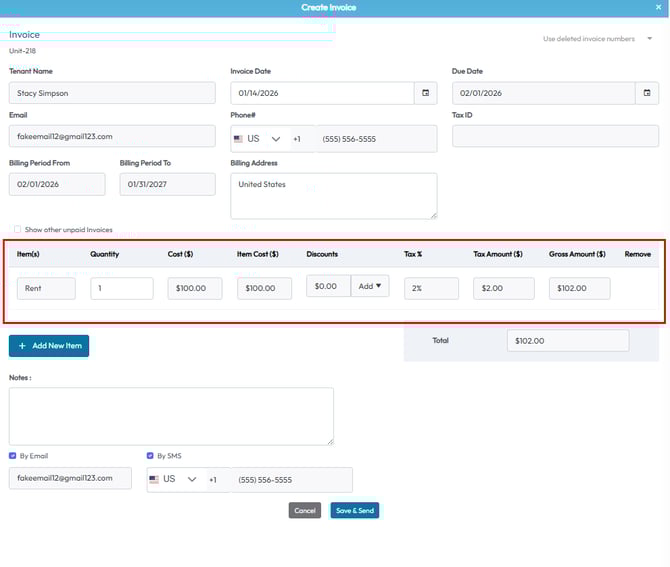
You can preview the Line Items that will appear on the invoice in the center.
By default after selecting Next Invoice the rent item will show with a quantity of 1 billing period. Increasing this quantity will extend the Billing Period To date so the tenant can pay in advance.
You can also select the Add button under the Discount heading to add a discount to this invoice
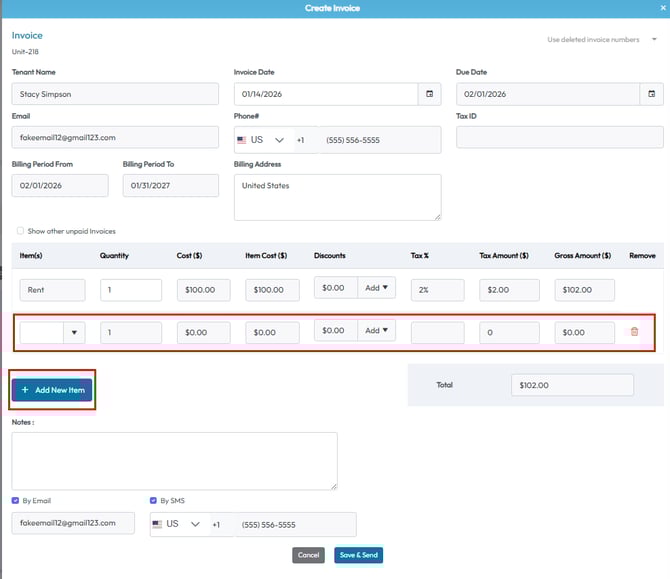
Selecting the Add New Item button will create a new line item for the tenant to pay.
Use the drop down arrow under the Item heading to select any of your previously configured items. This can include Content Coverage, Merchandise, Fees and Services
You can also change the quantity and add a discount to this line item as well.
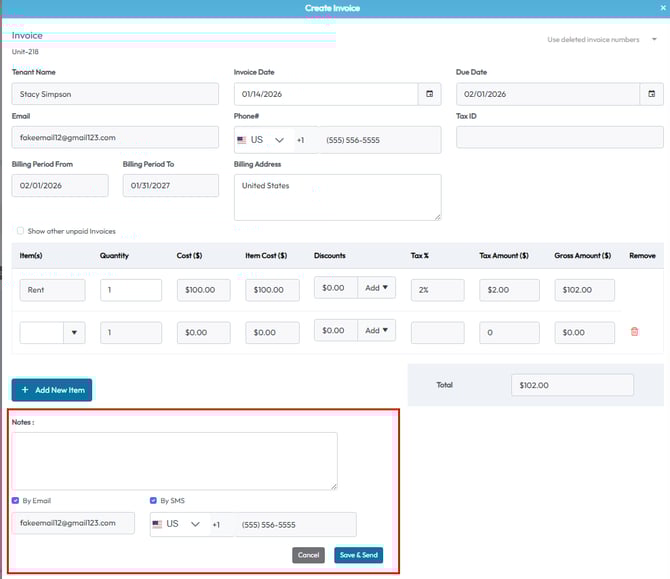
At the bottom you will have the option to add a Note that will appear on the invoice document for the tenant to see.
You can also use the check boxes to decide if the tenant should be notified By Email or By SMS that a new invoice was created.
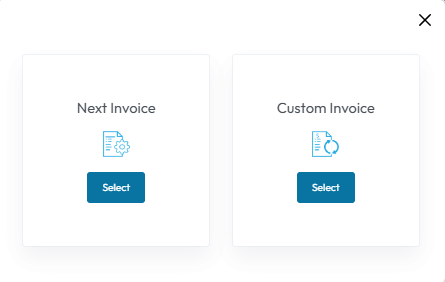
Custom Invoice
A custom invoice functions the same way but it will not have a billing period attached to it.
You will have to start by selecting the Add New Item button will create a new line item for the tenant to pay.
Use the drop down arrow under the Item heading to select any of your previously configured items. This can include Content Coverage, Merchandise, Fees and Services
You can also change the quantity and add a discount to this line item as well.